Implementing Multi-Admin Approval (MAA) in Microsoft Intune introduces a critical security control by ensuring that sensitive administrative actions require approval from multiple administrators.
Below is a practical step-by-step guide to help you deploy and operationalise MAA in your environment.
⚙️ Step 1: Create an Access Policy
- Sign in to the Microsoft Intune admin center
- Navigate to:
👉 Tenant Administration → Multi Admin Approval → Access policies - Select Create
🧱 Configure Basics
- Provide:
- Name (e.g. “MAA – Device Deletion Control”)
- Optional Description
- Select Profile type
- ⚠️ Each policy supports only one profile type
👥 Configure Approvers
- Select Add groups
- Choose an Azure AD group that will act as approvers
⚠️ Important:
- Only group-based assignment is supported
- No advanced include/exclude logic
✅ Review and Create
- Review configuration
- Select Create
🔐 Approval Requirement
- A separate admin account (with MAA approval permissions) must:
- Sign in
- Review
- Approve the policy
✔️ Finalise the Policy
- Return to the policy using the original admin account
- Select Complete
👉 Once completed:
Any action tied to the selected profile type will now require multi-admin approval
📤 Step 2: Submit a Request
When MAA is enabled, admins must follow an approval workflow.
📝 Submitting Changes
- Perform your normal action (e.g. delete device, modify config)
- On the final screen:
- Enter Business Justification
- Select Submit
⚠️ Important Notes
- If a request is already pending for the same object:
- ❌ You cannot submit another
- Intune will display a warning message
🔍 Track Request Status
Go to:
👉 Tenant Administration → Multi Admin Approval → My requests
❌ Cancel a Request
- Select request
- Click Cancel request (if not yet approved)
✔️ Step 3: Approve or Reject Requests
🔎 Locate Requests
Navigate to:
👉 Tenant Administration → Multi Admin Approval → Received requests
🧾 Review Details
- Select Business justification
- Review:
- Requested action
- Target resource
- Risk context
✍️ Take Action
- Add notes in Approver notes
- Select:
- ✅ Approve request
- ❌ Reject request
🔄 Final Completion Step
After approval:
- The requestor must select “Complete”
- Intune then:
- Executes the action
- Updates status to Completed
📊 Verify Outcome
Check:
- Intune notifications panel
- Confirmation of:
- Success ✅
- Failure ❌
🛡️ Operational Flow Summary
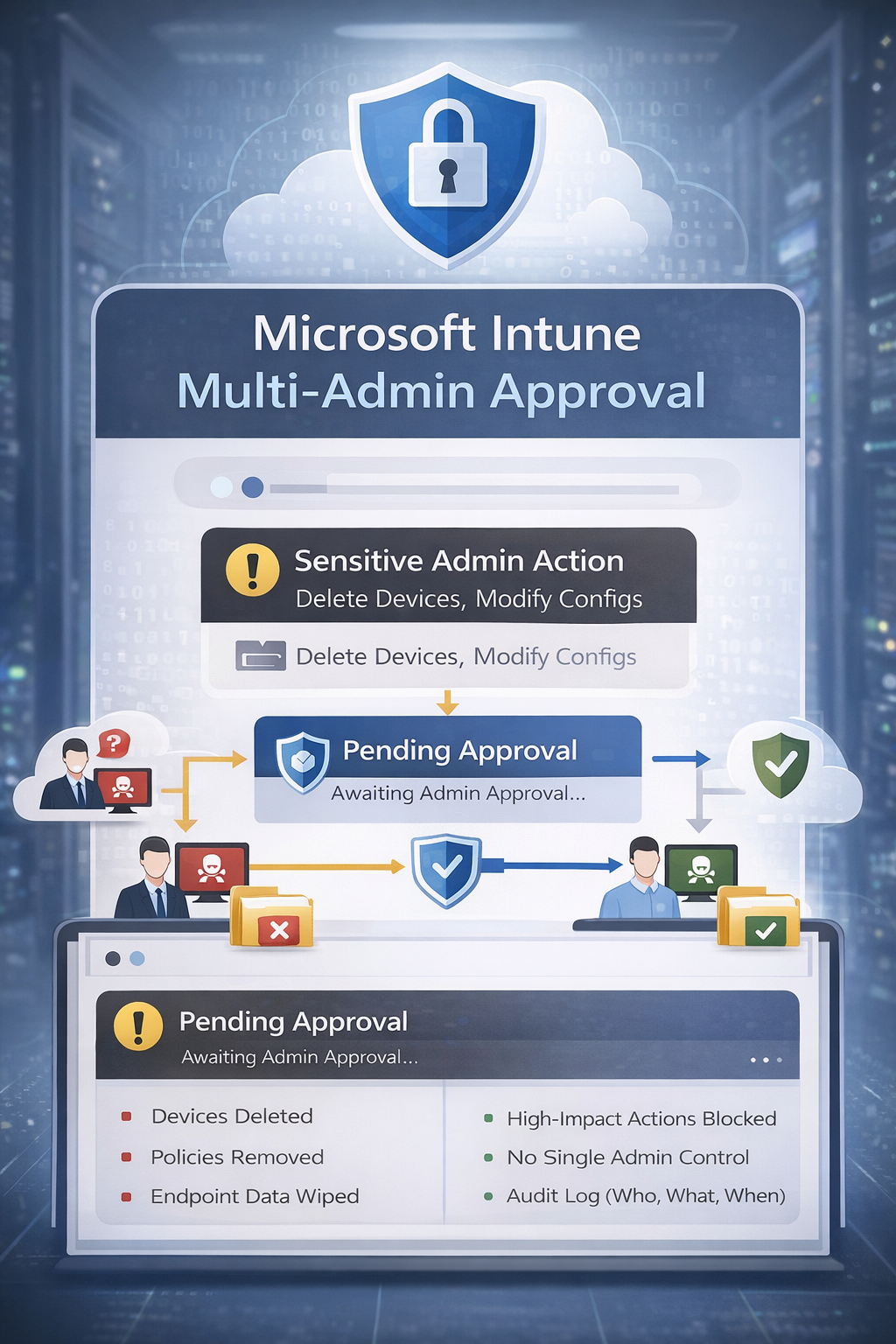
Admin Action → Submit Request → Approval Required → Approved → Complete → Action Executed
🎯 Best Practices
- Separate:
- Requestor ≠ Approver
- Use:
- Privileged Identity Management (PIM)
- Require:
- Strong business justification
- Monitor:
- Approval logs regularly
🚀 Why This Matters
This process introduces:
- 🔐 Protection against compromised admin accounts
- 👥 Human validation for sensitive actions
- ⏱️ Time delay for detection and response
- 📊 Full audit trail for compliance
Click Here To Return To Blog