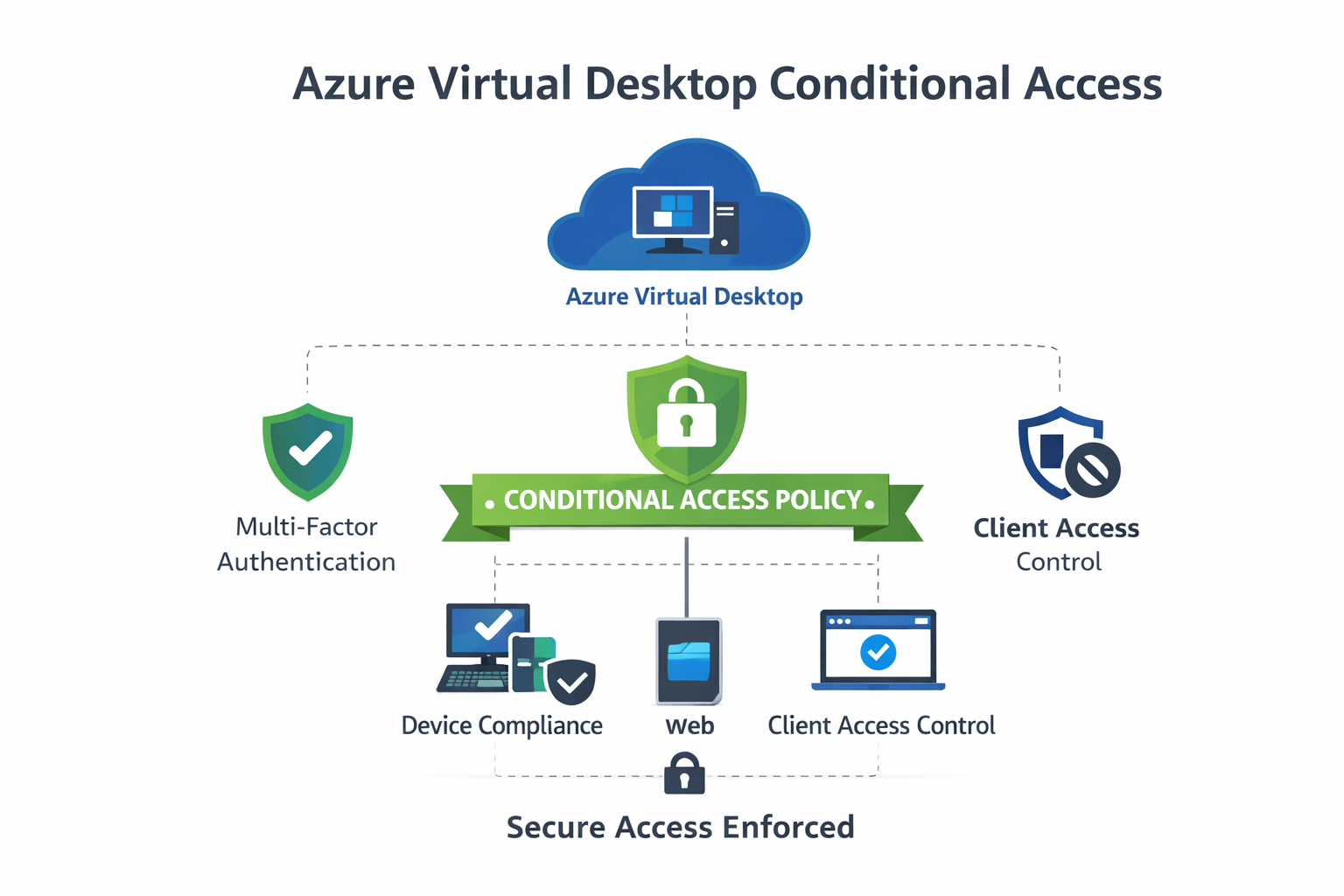
As organisations continue to scale Azure Virtual Desktop (AVD), securing access is no longer optional — it’s a baseline requirement. One of the most effective and recommended ways to protect AVD environments is by using Microsoft Entra Conditional Access (CA).
This blog explains why Conditional Access should be considered best practice for AVD, the security benefits it provides, and a step-by-step guide to configuring policies that protect access via the Windows App, Web client, and Remote Desktop clients.
🔐 Why Conditional Access Is Essential for Azure Virtual Desktop
Azure Virtual Desktop is an internet-facing service that relies on identity rather than network boundaries. Without Conditional Access, any successful sign-in is treated the same — regardless of device health, user risk, or location.
Conditional Access allows you to enforce context-aware access decisions such as:
- Requiring MFA
- Blocking risky sign-ins
- Enforcing compliant or hybrid-joined devices
- Restricting access by client type
Microsoft guidance: Conditional Access is a core control in a Zero Trust security model and is strongly recommended for all AVD deployments.
🛡️ Security Benefits of Conditional Access for AVD
Implementing Conditional Access for Azure Virtual Desktop delivers immediate security gains:
✅ Stronger Identity Protection
- Enforces Multi-Factor Authentication (MFA)
- Integrates with Entra ID sign-in risk
- Reduces credential-based attacks
✅ Device Trust Enforcement
- Restricts access to compliant or hybrid-joined devices
- Blocks unmanaged or risky endpoints
✅ Attack Surface Reduction
- Controls which client apps can access AVD
- Limits exposure from legacy or unsupported clients
✅ Consistent Policy Enforcement
- Applies the same controls across:
- Windows App
- Web client
- Remote Desktop clients
🧩 How Conditional Access Applies to Azure Virtual Desktop
Azure Virtual Desktop relies on Microsoft Entra ID authentication, which means Conditional Access policies apply directly to AVD sign-ins.
Key Microsoft enterprise applications involved:
- Azure Virtual Desktop
- Windows App
- Azure Virtual Desktop Client
📘 Microsoft reference:
https://learn.microsoft.com/en-us/azure/virtual-desktop/security-guide
⚙️ Step-by-Step: Configure Conditional Access for Azure Virtual Desktop
Step 1: Open Conditional Access
- Go to Microsoft Entra admin center
- Navigate to Protection > Conditional Access
- Select Create new policy
📘 Microsoft guide:
https://learn.microsoft.com/en-us/entra/identity/conditional-access/overview
Step 2: Assign Users or Groups
- Target AVD users or security groups
- Exclude:
- Emergency / break-glass accounts
- Service accounts (where appropriate)
Best practice: Always exclude at least one emergency access account.
Step 3: Select Target Resources
Under Cloud apps or actions, choose:
- Azure Virtual Desktop
- Windows App
- Windows Cloud Login (Recommended for SSO)
- Azure WIndows VM Sign-In (Recommended for SSO)
This ensures coverage for:
- Windows App
- Web client
- Desktop clients
Step 4: Configure Network
📍 Locations
- Control user access based on their network or physical location
- Block access from untrusted countries
- Allow trusted corporate locations
💻 Device Platforms
- Optionally restrict to:
- Windows
- macOS
- iOS / Android
🧠 Sign-In Risk (Optional)
- Require MFA for medium or high risk sign-ins
📘 MS Guide:
https://learn.microsoft.com/en-us/entra/identity/conditional-access/concept-assignment-network
Step 5: Configure Conditions (Recommended)
📍 Locations
- Block access from untrusted countries
- Allow trusted corporate locations
💻 Device Platforms
- Optionally restrict to:
- Windows
- macOS
- iOS / Android
🧠 Sign-In Risk (Optional)
- Require MFA for medium or high risk sign-ins
Step 6: Access Controls (Grant)
Recommended baseline:
- ✅ Require multi-factor authentication
- Optional:
- Require compliant device
- Require hybrid Entra ID joined device
📘 MFA enforcement:
https://learn.microsoft.com/en-us/entra/identity/authentication/concept-mfa-howitworks
Step 7: Conditions (Critical)
Under Conditions > Client apps, ensure the policy applies to:
✔ Mobile apps and desktop clients
✔ Browser
This ensures protection for:
- Windows App
- AVD Web Client
- Remote Desktop clients
⚠️ If client apps are not selected correctly, users may bypass policy controls.
📘 Client app filtering:
https://learn.microsoft.com/en-us/entra/identity/conditional-access/concept-conditional-access-conditions#client-apps
Step 8: Enable and Test
- Set policy to Report-only initially
- Validate sign-in behaviour
- Review Sign-in logs
- Move to On once validated
📘 Monitoring CA policies:
https://learn.microsoft.com/en-us/entra/identity/conditional-access/howto-conditional-access-insights-reporting
🧠 Best Practice Recommendations
- Always protect AVD with Conditional Access
- Combine CA with:
- Entra PIM for admin roles
- Device compliance via Intune
- Windows Cloud I/O Protection (where available)
- Regularly review sign-in logs and policy impact
- Avoid legacy authentication where possible
🚀 FABS Solutions Perspective
Conditional Access is not an “advanced option” — it’s a foundational security control for Azure Virtual Desktop.
When combined with:
- Entra Conditional Access
- Privileged Identity Management (PIM)
- Nerdio automation
- Strong identity hygiene
…AVD becomes a secure, Zero Trust–aligned workspace suitable for enterprise and regulated environments.
🔗 Learn More
- AVD security overview:
https://learn.microsoft.com/en-us/azure/virtual-desktop/security-guide - Conditional Access overview:
https://learn.microsoft.com/en-us/entra/identity/conditional-access/overview
Click Here To Return To Blog