Azure Virtual Desktop (AVD) has become the cloud-native solution of choice for organizations offering flexible, secure remote work options. One of the most commonly asked questions during technical interviews or in enterprise deployments is: "What does the end-to-end login process look like for a user connecting to AVD?"
This comprehensive guide breaks down the AVD login workflow, including authentication, broker interaction, profile loading, and critically, the impact of Conditional Access Policies—a key element in securing user access in a modern, identity-driven cloud environment.
Understanding the AVD Login Flow
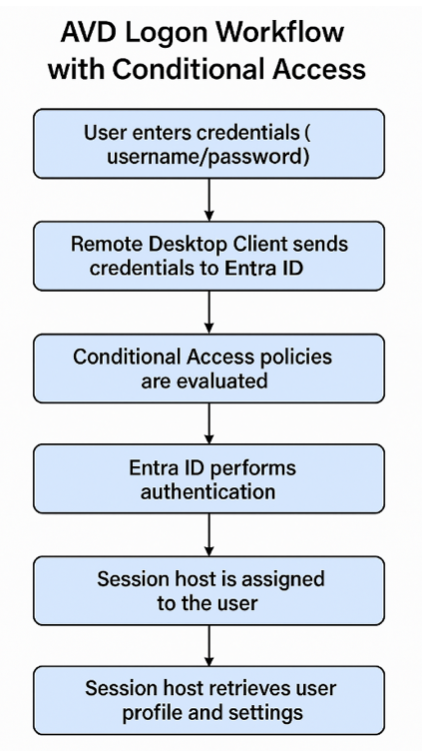
When a user signs in via the Microsoft Remote Desktop Client, a coordinated sequence of operations ensures secure access, session assignment, and workspace delivery. Here’s a breakdown of the complete login process, with an emphasis on compliance, security, and performance.
1. Authentication with Entra ID (Azure AD)
Authentication begins the moment a user submits credentials into the Remote Desktop Client.
Credential Input: Users provide a username and password.
Multi-Factor Authentication (MFA): If enabled, users must validate their identity using a second factor like a push notification or code.
Microsoft Entra ID (formerly Azure AD) checks:
Identity verification
Group membership
Device compliance
Before anything else proceeds, Conditional Access Policies kick in here to ensure that login requests meet all defined security conditions.
2. Conditional Access Policies: Securing the AVD Login Process
Conditional Access (CA) is one of the most powerful tools available in Microsoft Entra ID to protect AVD environments. These policies act as a gatekeeper, making dynamic access decisions based on signals such as user identity, device state, location, and risk level.
How Conditional Access Works in AVD:
User Risk Detection: Can blocks or challenges logins from compromised accounts.
Device Compliance Check: Ensure the device is marked as compliant in Microsoft Intune before allowing access.
Location Awareness: Restricts access based on geographic location or IP address (e.g., block access from foreign countries).
Application Control: Applies controls specifically to Azure Virtual Desktop as a cloud app, enforcing requirements like MFA or device enrollment.
Session Control: In certain scenarios, Conditional Access can enforce limited session access using tools like Microsoft Defender for Cloud Apps.
Example CA Policy for AVD:
Require MFA for all AVD access except from compliant devices on trusted networks.
Conditional Access enforces your zero trust architecture by verifying every access attempt in real time and minimizing the attack surface across cloud-hosted desktops.
3. Session Routing via Azure Virtual Desktop Broker
Once the user clears authentication and CA requirements, the AVD Broker Service takes over:
Session Check: Determines if an active session already exists for the user.
Session Host Allocation: Selects an available VM from the host pool, considering load-balancing and user affinity rules.
Reconnect Handling: If the user previously disconnected, the session is reattached to preserve the user experience.
4. RDP Connection Establishment
At this stage, the user’s device initiates a Remote Desktop Protocol (RDP) session to the assigned virtual machine.
Session Host IP & Port: Provided by the Broker to the client.
TLS Encryption: RDP traffic is encrypted using Transport Layer Security for data protection in transit.
AVD Gateway: Acts as a relay for devices behind firewalls or NATs, allowing remote connectivity from any network.
5. Profile Loading and Desktop Initialization
Once the RDP session is established, the session host initializes the user environment:
FSLogix Profile Containers: If configured, user profiles are mounted as .vhdx files from a central file share, allowing for persistent settings and fast sign-ins.
Policy Application: Group policies or Intune configuration profiles are applied during login.
App & Desktop Launch: Based on user assignments in AVD, either a full desktop or specific remote applications are launched.
6. Real-Time Session Experience and Redirection
During the active session:
Keyboard, mouse, and audio redirection occur in real-time between the client and the session host.
Peripheral Support: Users can access local printers, clipboards, and even USB drives if redirection is enabled.
Smooth UI delivery: RDP ensures a responsive experience, even over less-than-perfect network conditions.
7. Ongoing Monitoring, Logging, and Auditing
Security and visibility remain critical post-login:
Azure Monitor Logs: Capture all user login attempts, failures, and session activities.
Entra ID Sign-In Logs: Useful for analyzing failed Conditional Access evaluations and MFA challenges.
Diagnostic Settings: If enabled, additional telemetry can be sent to Log Analytics, Sentinel, or third-party SIEM tools.
Session Health Monitoring: Nerdio Manager or native AVD Insights can alert administrators to performance issues or host failures.
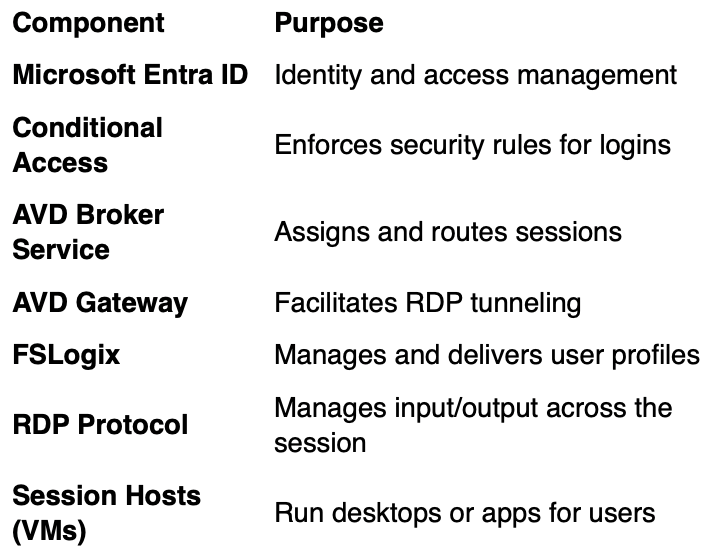
Key Components in the AVD Login Ecosystem
Conclusion: A Secure, Seamless AVD Login Workflow
The Azure Virtual Desktop login process is a sophisticated, well-integrated series of steps designed to deliver secure and efficient remote work capabilities. With Conditional Access Policies woven into the login workflow, organizations can ensure only trusted users and devices access their virtual environments—strengthening data protection and operational compliance.
For IT teams, understanding and optimizing this login flow—with full visibility into identity management, session handling, and performance monitoring—is essential to delivering a world-class virtual desktop experience.
Pro Tip: Regularly review and test your Conditional Access configurations in AVD. Microsoft’s What-If tool in Entra ID can help simulate policy results before they impact users.
If you want to know more about Nerdio or seek to improve the efficency of your organisation through the use of Nerdio please contact Fabs Solutions.Click Here To Return To Blog