Fabs Solutions | Microsoft Intune, Windows 365 & Azure Virtual Desktop
Secure remote assistance without relying on a separate support platform.
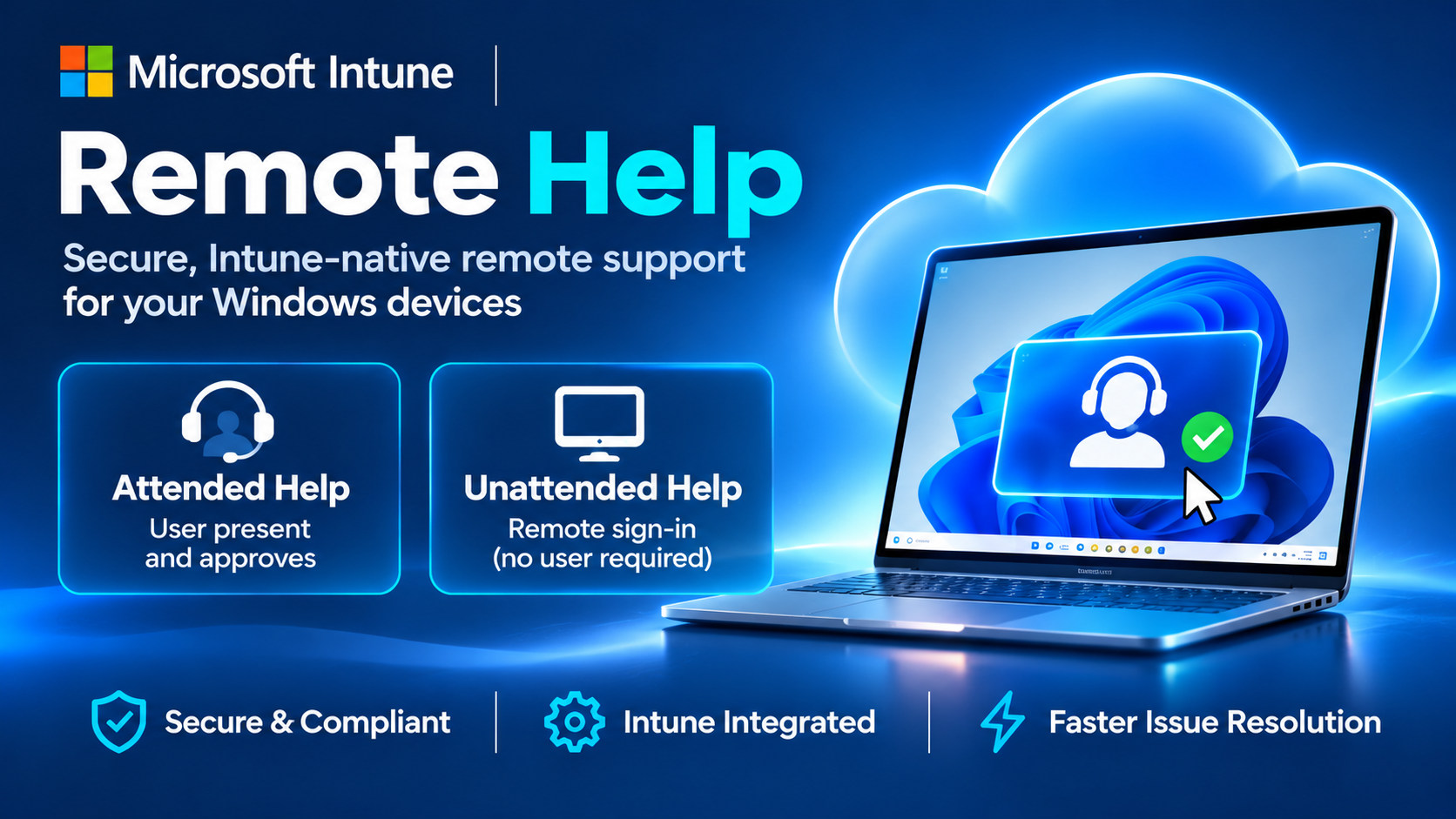
Microsoft Intune Remote Help allows IT support teams to securely connect to managed Windows devices, troubleshoot problems and provide assistance directly through the Microsoft ecosystem.
But there's an important difference between attended and unattended support, particularly for Windows 365 Cloud PCs.
1. What is Intune Remote Help?
Remote Help provides secure remote assistance using Microsoft Entra ID authentication, Intune role-based access control (RBAC) and device compliance information.
Support engineers can view a user's screen, request control and troubleshoot applications or Windows configuration issues.
For eligible devices, unattended remote sign-in also enables support without the user being present.
2. Attended vs Unattended — What's supported?
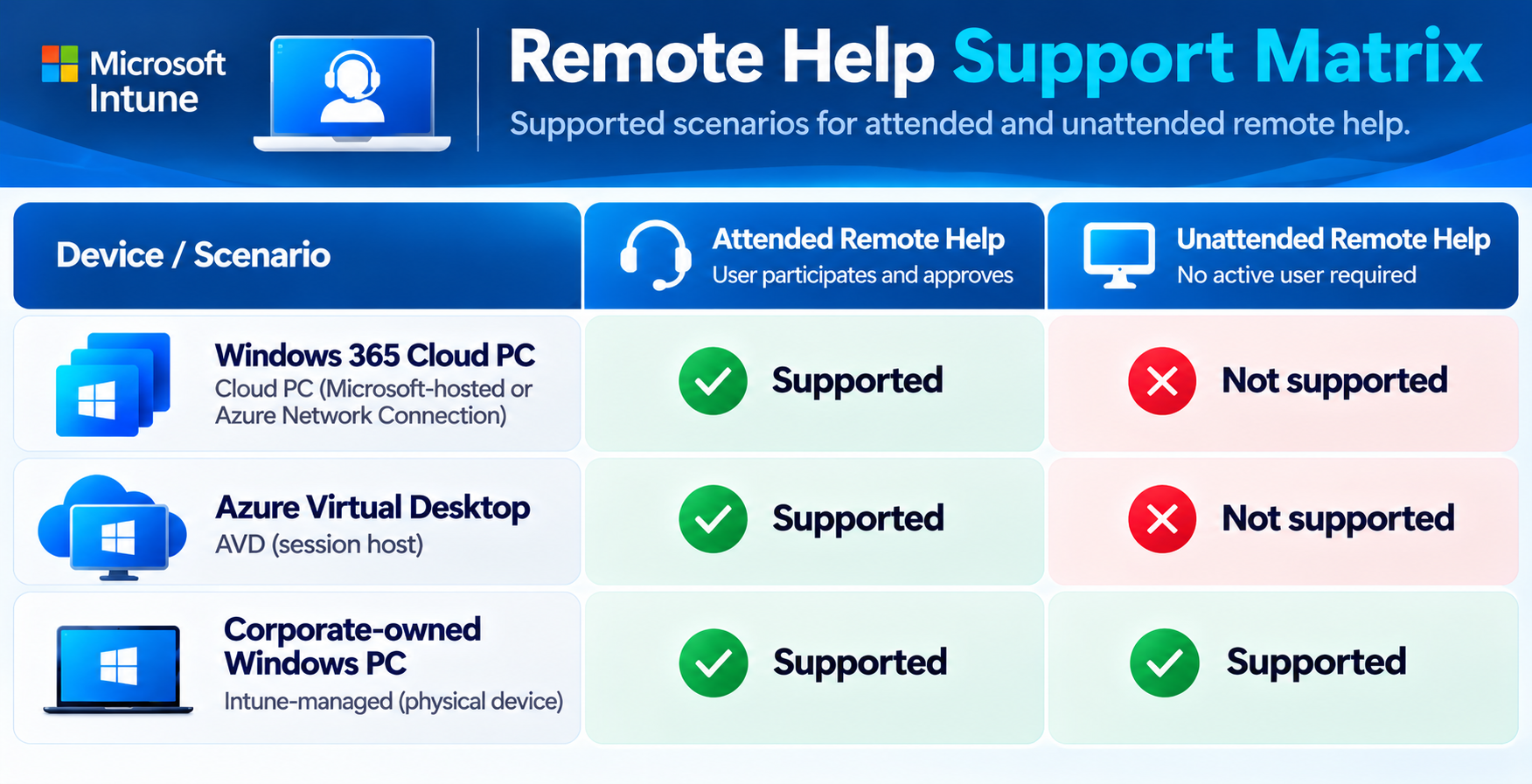
| Device | Attended | Unattended | |||
|---|---|---|---|---|---|
| Windows 365 — Microsoft-hosted network | Yes | No | |||
| Windows 365 — Azure Network Connection | Yes | No | |||
| Azure Virtual Desktop | Yes | No | |||
| Eligible corporate-owned physical Windows PC | Yes | Yes |
- Attended: The user is present, approves the connection and can interact with the support engineer.
- Unattended: An authorised engineer remotely signs in without the user being present.
- Important: Installing the AVD Agent and Bootloader on a Windows 365 Cloud PC does not enable unattended Remote Help. Microsoft currently excludes virtual devices from this capability.
3. What are the prerequisites?
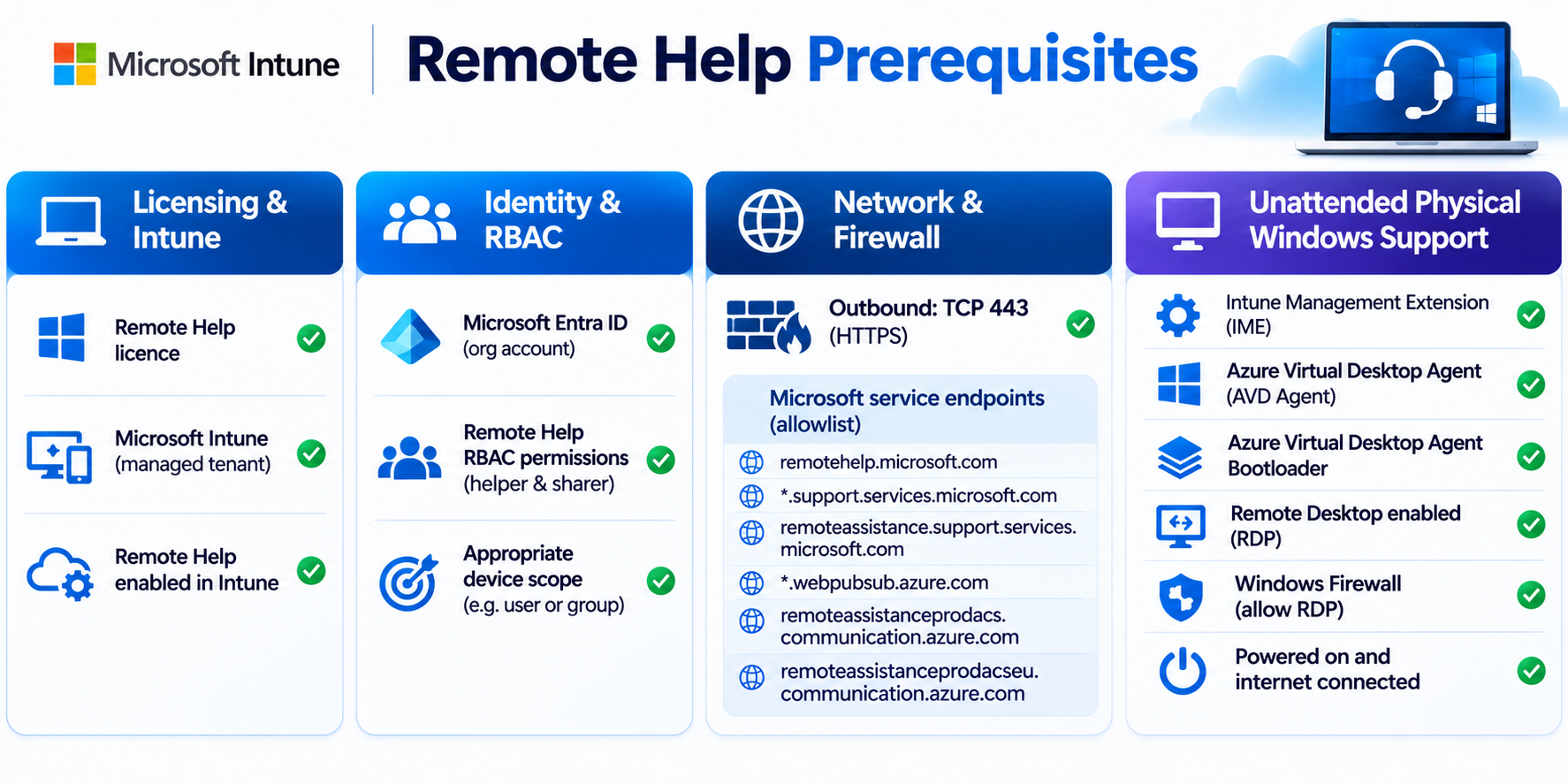
| Requirement | Details | ||
|---|---|---|---|
| Licensing | Remote Help entitlement for the helper and sharer | ||
| Microsoft Intune | Remote Help enabled in the tenant | ||
| Microsoft Entra ID | Organisational identities | ||
| Permissions | Appropriate Remote Help RBAC roles and scope | ||
| Network | Outbound HTTPS TCP 443 and required Microsoft endpoints | ||
| Client | Supported Remote Help application or web experience |
For unattended support on eligible physical Windows devices, additional prerequisites include the Intune Management Extension, AVD Agent, AVD Agent Bootloader, Remote Desktop configuration and appropriate Windows Firewall rules.
For firewall and service-tag configuration, follow Microsoft's maintained documentation rather than relying on a static endpoint list.
Microsoft Intune network endpoints
Remote Help deployment and unattended prerequisites
4. How do you Enable & Setup Remote Help on your tenant?
3 Elements
- Enable Remote Help for your Intune Tenant
- Package the remote app within Intune (ready to deploy to endpoints)
- Test
Here's a great video on how to do this all:
5. Fabs Solutions recommendation
For organisations managing Windows 365, AVD and physical Windows endpoints through Intune, Remote Help is worth evaluating as part of the endpoint support strategy.
Start with attended Remote Help for Windows 365 Cloud PCs, regardless of whether the Cloud PC uses Microsoft-hosted networking or an Azure Network Connection.
For physical Windows endpoints, consider unattended support where the operational need justifies the additional prerequisites and security permissions.
Always validate licensing, least-privilege RBAC, network connectivity and device eligibility before deployment.
Key takeaway
Attended Remote Help: User present and approves the session. Supported for Windows 365, AVD and eligible physical Windows devices.
Unattended Remote Help: No active user required. Currently supported on eligible physical corporate Windows devices, not Windows 365 or AVD.
Remote Help brings secure, Intune-integrated assistance to endpoint support teams, but device compatibility and network prerequisites matter.
Microsoft documentation
Plan for Remote Help — compatibility and limitations
Deploy Remote Help — technical prerequisites
Intune network endpoints — firewall and service requirements
Click Here To Return To Blog