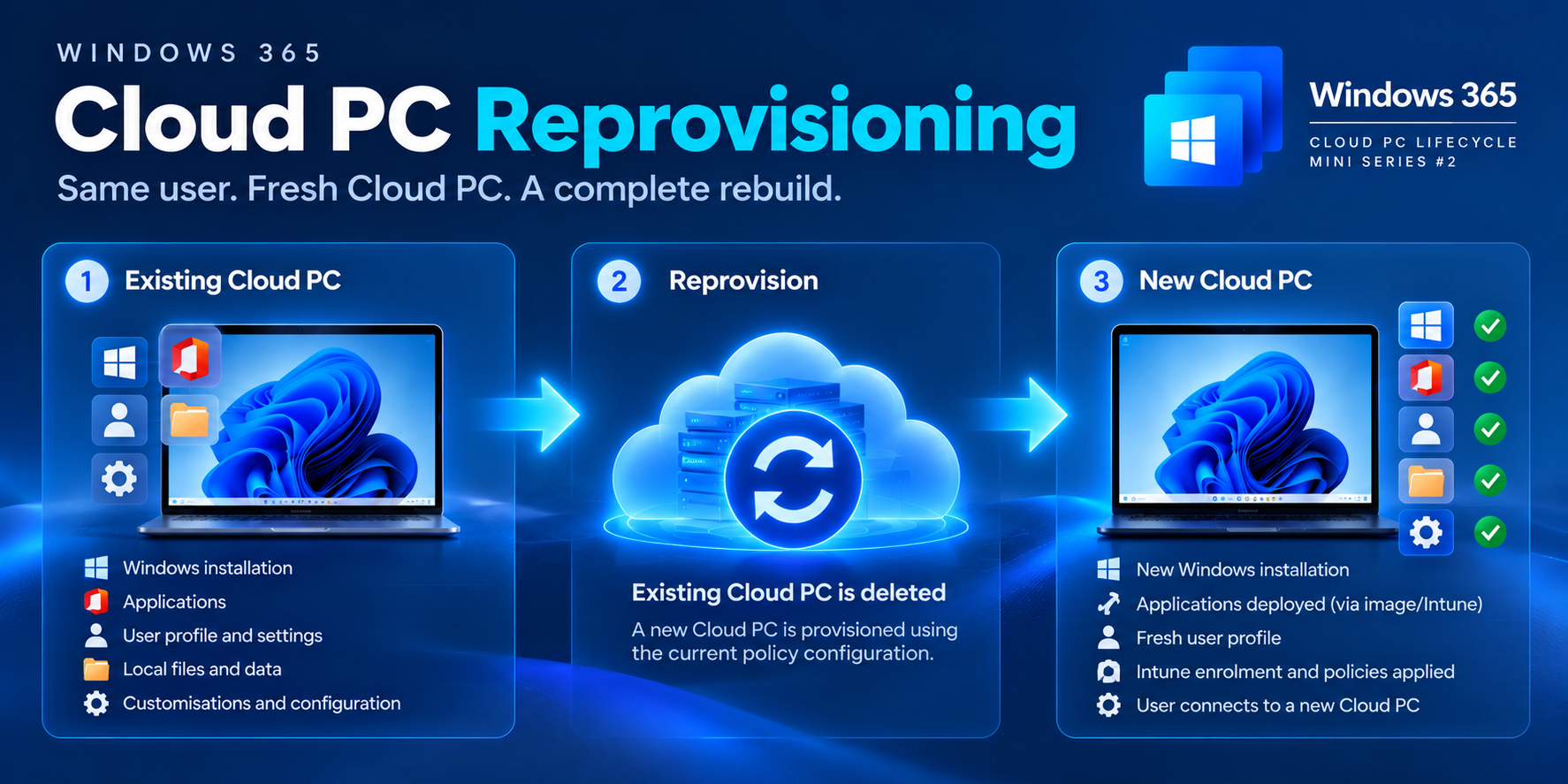
Same user. Fresh Cloud PC. A complete rebuild.
Your Cloud PC has become unstable, an application is causing persistent problems, or your organisation has introduced a new Windows image.
Rather than continuing to troubleshoot the existing environment, Windows 365 provides Reprovision.
But unlike Restart, Resize or Point-in-Time Restore, Reprovision is destructive.
It deletes the existing Cloud PC and creates a new one using the current applicable provisioning policy.
1. What actually happens?
Existing Cloud PC → Windows + applications + user profile + local data
↓
Reprovision → Existing Cloud PC and its contents deleted
↓
New Cloud PC created → Current Windows image and provisioning configuration applied
↓
Intune enrolment and configuration → Applications, policies and security controls deployed
↓
User connects to a fresh Cloud PC → The replacement Cloud PC may have a different device name and identity.
2. Watch it happen
Windows 365 — Cloud PC Reprovisioning
Reprovisioning is initiated from Microsoft Intune and automatically replaces the user's Cloud PC.
For the official procedure, see Microsoft's Reprovision a Cloud PC guide.
3. What happens to Windows, apps and data?
| Component | After Reprovision | |
|---|---|---|
| Windows installation | ❌ Removed; new Windows installed | |
| Installed applications | ❌ Removed; managed apps can redeploy | |
| User profile and settings | ❌ New local profile created | |
| Local files and documents | ❌ Deleted | |
| OneDrive / SharePoint cloud data | ✅ Independently retained | |
| Intune management | 🔄 New enrolment and policy application | |
| Microsoft Defender | 🔄 Security onboarding and configuration reapplied | |
| Device name and identity | 🔄 May change | |
| Existing restore points | ❌ Not retained |
Remember:
- Applications and files don't automatically return simply because they existed on the previous Cloud PC.
- Applications must be included in the current image, assigned through management, or installed again.
- Likewise, OneDrive or SharePoint data remains available independently, but local-only files may be permanently lost.
4. How do I reprovision a Cloud PC?
In the Microsoft Intune admin center:
Devices → All devices → Select Cloud PC → Reprovision
Review the confirmation and select Yes.
The action is available for Cloud PCs in the Provisioned or Failed provisioning state.
The user is signed out, and the existing Cloud PC becomes unavailable while Windows 365 creates its replacement.
Once provisioning completes, the user can reconnect.
5. When should you use Reprovision?
Reprovision is appropriate when:
- The Cloud PC is persistently corrupted or unstable and less disruptive fixes haven't worked.
- A previous provisioning attempt failed.
- You need to rebuild an existing Cloud PC using an updated base image or provisioning configuration.
- You're validating a fresh deployment in a test environment.
Important: Changing a provisioning policy doesn't automatically rebuild existing Cloud PCs. Reprovision uses the current applicable policy configuration, which may differ from the configuration used originally.
6. Fabs Solutions recommendation
Before reprovisioning a production Cloud PC, check four things:
1. Protect user data. Confirm important Desktop, Documents, Downloads and application files aren't stored exclusively on the local Cloud PC disk.
2. Confirm applications will return. Check the current base image, Intune application assignments and any manually installed software.
3. Review the provisioning policy. Verify the intended image, network configuration, join type and other relevant settings.
4. Plan for the replacement. Notify the user, allow time for provisioning, and validate Intune compliance, applications, Defender onboarding and access to corporate resources afterwards.
Where the issue is limited to an application, connectivity or configuration, investigate those first.
Reprovision replaces the Cloud PC. It doesn't repair the existing one.
7. Reprovision vs other lifecycle actions
| Action | What happens? | Existing environment | ||
|---|---|---|---|---|
| Restart | Reboots Windows | Retained | ||
| Resize | Changes CPU, RAM or storage | Retained | ||
| Move | Changes region or network | Retained | ||
| Point-in-Time Restore | Returns to an earlier state | Rolled back | ||
| Reprovision | Deletes and recreates Cloud PC | Replaced |
Key takeaway
Windows 365 Reprovision is a powerful recovery and lifecycle operation, but it should be used deliberately.
New Cloud PC. New Windows installation. Fresh local profile. Current provisioning configuration.
Protect local data first, and make sure your endpoint management policies can reliably rebuild the user's working environment.
Microsoft documentation
Click Here To Return To Blog