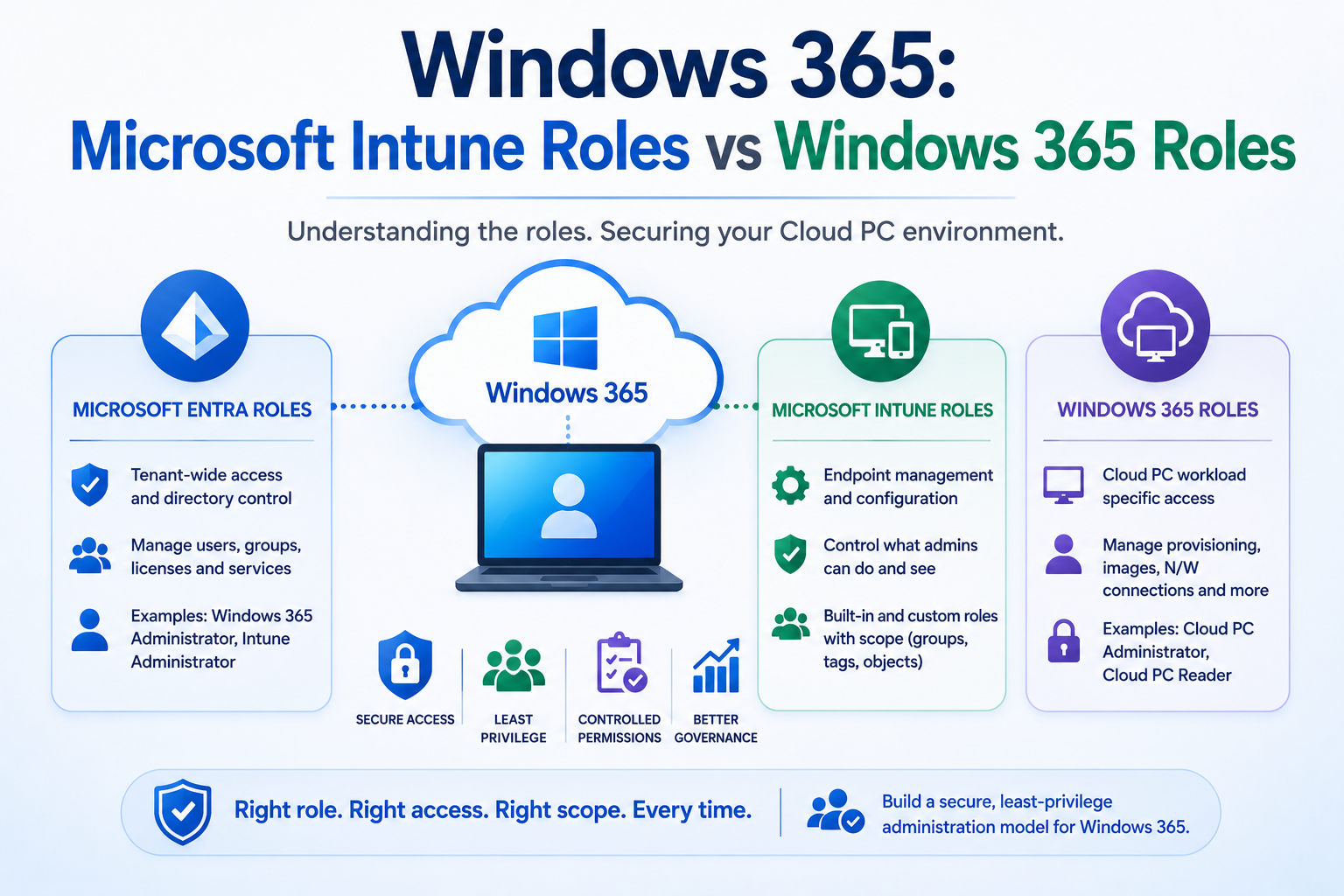
Windows 365 administration doesn't rely on a single RBAC model. Microsoft Entra roles control tenant-level authority, Intune RBAC controls endpoint administration, and Windows 365 Cloud PC roles provide workload-specific permissions. Understanding where each permission comes from is essential to building a secure least-privilege Cloud PC operating model.
Introduction
A common question when deploying Windows 365 is:
Which administrator role should I give my support team?
The answer isn't simply "Windows 365 Administrator."
Windows 365 sits across several Microsoft management services, including:
- Microsoft Entra ID
- Microsoft Intune
- Windows 365
- Microsoft Graph
- Microsoft 365
- Azure, where customer-managed networking is used
As a result, an administrator might be able to manage a Cloud PC but not its Intune configuration.
Another administrator might be able to manage the device through Intune but not modify its Windows 365 provisioning policy.
A third administrator might have tenant-wide Windows 365 permissions that are considerably broader than required for their day-to-day responsibilities.
Understanding these boundaries is fundamental to implementing least-privilege administration.
The Three Permission Layers
At a simplified level, think about Windows 365 administration as three permission layers:
Microsoft Entra Roles
Who can administer the tenant and associated services?
↓
Microsoft Intune RBAC
What endpoint-management operations can the administrator perform, and against which resources?
↓
Windows 365 / Cloud PC RBAC
What Windows 365-specific operations can the administrator perform?
The roles can complement each other.
They shouldn't automatically be treated as interchangeable.
1. Microsoft Entra Roles
Microsoft Entra provides directory-level administrative roles.
Examples relevant to Windows 365 include:
- Global Administrator
- Global Reader
- Windows 365 Administrator
- Intune Administrator
- User Administrator
- Groups Administrator
- License Administrator
- Reports Reader
These are tenant-level roles and some provide access extending well beyond the Windows 365 workload.
That distinction is important.
Windows 365 Administrator
Microsoft provides a dedicated Windows 365 Administrator Microsoft Entra role.
This role has global permissions over Windows 365 resources when the Windows 365 service is present.
It can also manage users and devices for policy association and can create and manage security groups.
This makes it considerably more focused than Global Administrator, but it remains a powerful administrative role.
A Windows 365 Administrator is therefore best suited to administrators who genuinely require broad Windows 365 service administration rather than every engineer who occasionally supports a Cloud PC.
What About Intune Administrator?
The Microsoft Entra Intune Administrator role provides global read/write permissions within Microsoft Intune.
That sounds convenient.
But convenience and least privilege aren't the same thing.
An Intune Administrator can potentially administer considerably more than Windows 365 Cloud PCs, including the organisation's wider managed endpoint estate.
Microsoft recommends using Intune's built-in RBAC roles for routine Intune administration and avoiding broad Microsoft Entra roles that provide Intune access where more granular permissions can satisfy the requirement.
Fabs Recommendation
Don't make:
Intune Administrator
the default role for your desktop engineering or Cloud PC support teams.
Instead start with:
Intune built-in role
or
Custom Intune role
and add only the Windows 365 permissions genuinely required.
Where a highly privileged Entra role is occasionally necessary, consider making it eligible through Microsoft Entra Privileged Identity Management rather than permanently assigned.
2. Microsoft Intune RBAC
Microsoft Intune has its own RBAC framework.
This is where organisations can become much more granular.
An Intune role determines:
What can the administrator do?
But an Intune role assignment also helps determine:
Which users and devices can they administer?
and:
Which Intune objects can they see?
This makes Intune RBAC particularly important for large Windows 365 estates.
Common Intune Built-in Roles
Microsoft provides several built-in Intune roles.
Relevant examples include:
Help Desk Operator
Designed for service-desk activities.
The role can perform remote tasks against users and devices and can also assign applications or policies.
Because the role contains more than simply read access, organisations should still review its individual permissions before automatically assigning it to every L1 engineer.
Read Only Operator
Provides visibility into:
- Users
- Devices
- Enrollment
- Configuration
- Applications
without allowing changes.
This can be particularly useful for:
- Service owners
- Problem management
- Security teams
- Audit teams
- Senior support personnel requiring diagnostic visibility
Endpoint Security Manager
Designed around security and compliance administration.
This includes areas such as:
- Endpoint security
- Security baselines
- Device compliance
- Microsoft Defender for Endpoint integration
This is appropriate for security-focused engineers but shouldn't automatically be assigned to a general Windows 365 service desk.
Policy and Profile Manager
Provides management capabilities around areas such as:
- Configuration profiles
- Compliance policies
- Security baselines
This can be useful for an endpoint engineering team responsible for the configuration layer applied to Cloud PCs.
Application Manager
Provides application-management capabilities.
This is useful where application packaging and deployment responsibilities are deliberately separated from Cloud PC platform administration.
3. Windows 365 Cloud PC Roles
When a tenant contains a Windows 365 subscription, additional Cloud PC roles become available within Microsoft Intune.
The two most important are:
Cloud PC Administrator
Microsoft describes Cloud PC Administrator as having read and write access to all Cloud PC features located within the Cloud PC area.
Typical responsibilities include:
- Cloud PC provisioning
- Provisioning policies
- Azure Network Connections
- Custom images
- Cloud PC lifecycle management
T
his makes Cloud PC Administrator an extremely useful role for a Windows 365 engineering team.
But notice the boundary:
Cloud PC Administrator is about the Cloud PC workload.
It doesn't automatically mean the administrator should receive unrestricted control over every Intune workload.
Cloud PC Reader
Cloud PC Reader provides read access to Cloud PC features within the Cloud PC area without permitting changes.
This makes it particularly valuable for:
- L1 support
- Service management
- Operations
- Monitoring teams
- Audit
- Troubleshooting
- Stakeholders requiring visibility
It is one of the simplest ways to provide Windows 365 visibility without handing someone administrative control of the platform.
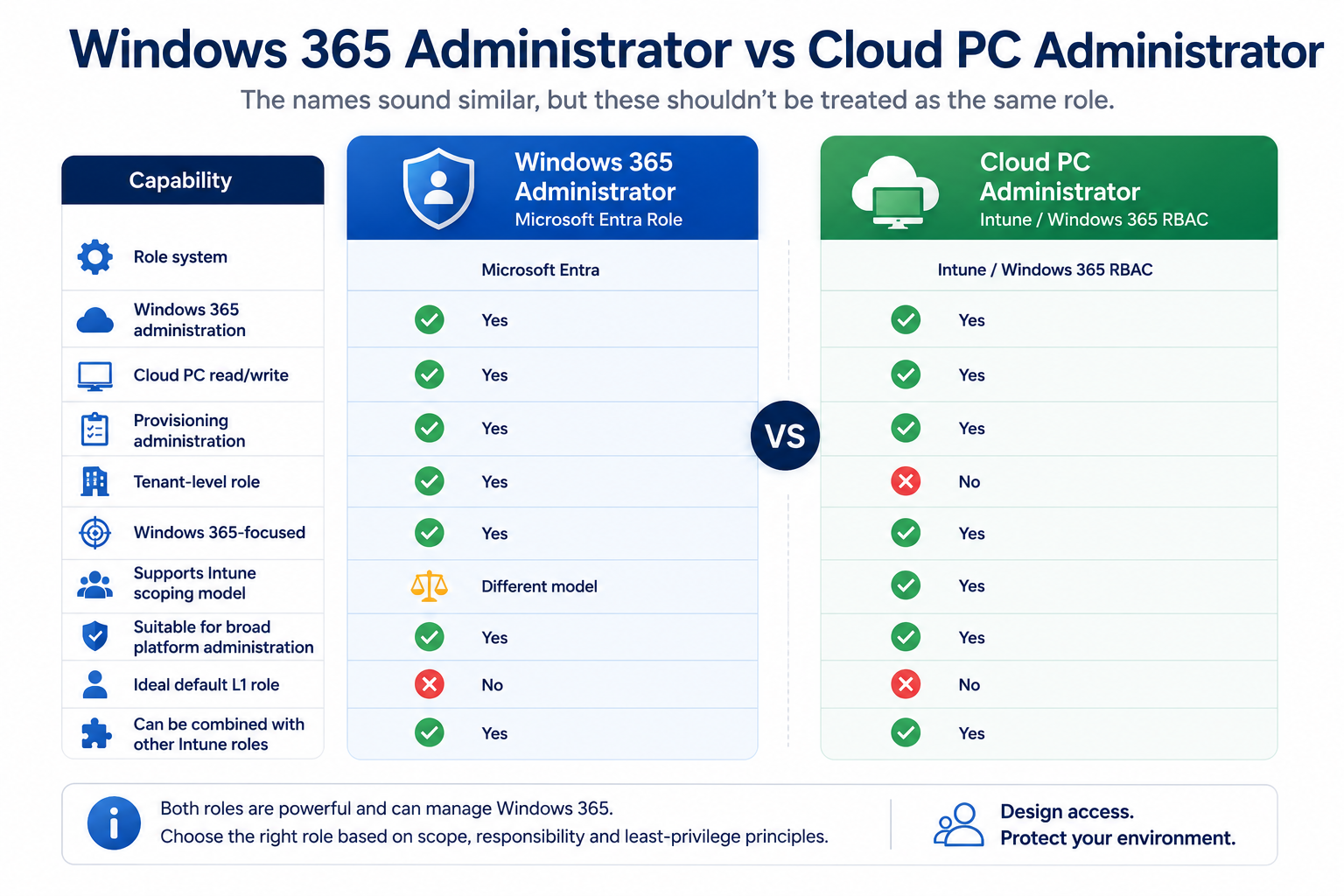
Windows 365 Administrator vs Cloud PC Administrator
The names sound similar, but these shouldn't be treated as the same role.
| Capability | Windows 365 Administrator | Cloud PC Administrator |
|---|---|---|
| Role system | Microsoft Entra | Intune / Windows 365 RBAC |
| Windows 365 administration | Yes | Yes |
| Cloud PC read/write | Yes | Yes |
| Provisioning administration | Yes | Yes |
| Tenant-level role | Yes | No |
| Windows 365-focused | Yes | Yes |
| Supports Intune scoping model | Different model | Yes |
| Suitable for broad platform administration | Yes | Yes |
| Ideal default L1 role | No | No |
| Can be combined with other Intune roles | Yes | Yes |
The fundamental distinction is:
Windows 365 Administrator is a Microsoft Entra administrative role, whereas Cloud PC Administrator is a workload-specific role exposed through Intune RBAC.
For operational delegation, that difference matters.
Intune Roles and Windows 365 Roles Work Together
Consider a desktop engineer responsible for:
- Viewing Cloud PCs
- Restarting Cloud PCs
- Troubleshooting devices
- Syncing Intune policy
- Investigating application deployments
They don't necessarily need:
Intune Administrator
and they certainly don't need:
Global Administrator.
Instead, an organisation could combine appropriately scoped roles such as:
Cloud PC Administrator
Relevant Intune built-in/custom permissions
This creates a much more targeted administrative profile.
RBAC Is More Than Just the Role
This is where enterprise Windows 365 RBAC becomes particularly interesting.
An Intune role assignment contains several important components.
Admin Groups
Who receives the permissions?
For example:
W365-UK-L2-Admins
Scope Groups
Which users/devices can they administer?
For example:
W365-UK-Users
Scope Tags
Which Intune and Windows 365 objects can they see?
For example:
W365-UK
This allows organisations to move from:
Administrator = Role
to:
Administrator = Role + Scope + Resources
That is a much stronger enterprise administration model.
Example: Global Windows 365 Organisation
Imagine an organisation operating Windows 365 in:
- United Kingdom
- United States
- Germany
The organisation doesn't necessarily want UK desktop engineers administering US Cloud PCs.
Instead:
UK Desktop Engineering
Role
Cloud PC Administrator
Admin Group
W365-UK-L2
Scope
UK Windows 365 users/devices
Scope Tag
W365-UK
US Desktop Engineering
Role
Cloud PC Administrator
Admin Group
W365-US-L2
Scope
US Windows 365 users/devices
Scope Tag
W365-US
The engineers can perform essentially the same job function while operating against different administrative boundaries.
This is where Intune RBAC becomes much more powerful than simply assigning broad tenant-level administrative roles.
Windows 365 and Scope Tags
Windows 365 supports scope tags against several Windows 365 resources, including:
- Provisioning policies
- Azure Network Connections
- Cloud PCs
- Custom images
- Windows 365 RBAC role assignments
This allows administrators to build delegated management boundaries around Windows 365 resources.
There is, however, an important operational consideration.
Microsoft recommends aligning the Intune All devices and Windows 365 All Cloud PCs views when using scope tags.
One documented approach is to create a Microsoft Entra dynamic device group where:
enrollmentProfileName
matches the Windows 365 provisioning-policy name.
The relevant scope tag can then be assigned to that dynamic device group.
This helps ensure scoped administrators receive consistent visibility between Intune devices and the Windows 365 Cloud PC inventory.
Don't Forget Azure RBAC
For organisations using Azure Network Connections, another permission layer can enter the architecture:
Azure RBAC
Windows 365 requires Azure permissions against resources involved with an ANC.
For example, Windows 365 uses roles such as:
Windows 365 Network Interface Contributor
against the appropriate Azure resource group.
This is fundamentally different from giving the Windows 365 engineer broad Azure permissions such as:
Owner
or
Contributor
over an entire subscription.
Again, least privilege should be the design objective.
A Practical Enterprise Least-Privilege Model
The following is a starting point rather than a universal prescription.
| Persona | Windows 365 | Intune | Microsoft Entra |
|---|---|---|---|
| L1 Helpdesk | Cloud PC Reader | Help Desk Operator / custom support role | Minimal |
| L2 Desktop Engineer | Cloud PC Administrator or custom Cloud PC permissions | Relevant support/device permissions | Minimal |
| L3 Platform Engineer | Cloud PC Administrator | Custom engineering roles | Windows 365 Administrator via PIM where required |
| Platform Owner | Administrative visibility/control as required | Appropriate platform permissions | Windows 365 Administrator via PIM |
| Service Owner | Cloud PC Reader | Read Only Operator | Global Reader / Reports Reader where justified |
| Security Team | Cloud PC Reader where required | Endpoint Security Manager / Reader | Security-specific roles |
| Executive Stakeholder | Usually none | Usually none | Reporting/read-only access where genuinely required |
The objective isn't to make every Windows 365 engineer an administrator everywhere.
The objective is to construct the minimum combination of permissions necessary for their responsibilities.
L1 Support
An L1 engineer typically needs to:
- Find the user's Cloud PC
- Check its status
- View basic device information
- Perform approved troubleshooting
- Potentially perform selected remote actions
- Escalate platform issues
They don't need to:
- Modify provisioning policies
- Change ANCs
- Upload images
- Modify Windows 365 architecture
- Administer security policies
- Change tenant-wide Intune configuration
A combination of Cloud PC Reader and carefully selected Intune support permissions can therefore be more appropriate than Cloud PC Administrator.
L2 Desktop Engineering
L2 engineers typically require greater operational control.
Responsibilities might include:
- Cloud PC lifecycle operations
- Device sync
- Application troubleshooting
- Restore
- Reprovision
- Resize
- Advanced Intune troubleshooting
At this level, Cloud PC Administrator combined with appropriate Intune permissions becomes more reasonable.
However, don't automatically assign Intune Administrator simply because an engineer is L2.
L3 Platform Engineering
L3 owns the architecture.
Typical responsibilities include:
- Provisioning policies
- Images
- Azure Network Connections
- Networking
- Automation
- Intune configuration
- Application architecture
- Security integration
- Platform troubleshooting
This team may legitimately require Cloud PC Administrator plus broader Intune permissions.
Even here, however, highly privileged Microsoft Entra roles should preferably be activated only when required.
Service Owner and Management
Service owners generally need information rather than administrative control.
They may require visibility into:
- Cloud PC health
- Provisioning
- Capacity
- Service performance
- User experience
- Operational trends
- Licensing
- Adoption
Read-only roles should therefore be the default.
Giving service management Windows 365 Administrator merely so they can see dashboards defeats the principle of least privilege.
Be Careful With Role Combinations
Permissions are cumulative.
An engineer might receive:
Role A
through one administrative group,
and:
Role B
through another.
Their effective permissions are therefore broader than either role viewed independently.
This becomes particularly important in environments where administrators belong to:
- Global IT groups
- Regional IT groups
- Security groups
- Windows 365 administration groups
- Intune administration groups
RBAC reviews should therefore examine effective access, not merely individual role assignments.
Use Custom Intune Roles
Built-in roles are convenient, but they aren't always the best fit.
Microsoft Intune allows organisations to create custom roles using individual RBAC permissions.
For example, instead of giving an engineer broad device-management permissions, an organisation might create:
W365 – L1 Support
with only the actions required by the service desk.
Another could be:
W365 – Cloud PC Engineering
And another:
W365 – Read Only Operations
This makes the permissions model align with the organisation's operating model rather than forcing the organisation to align its operating model with Microsoft's built-in roles.
Privileged Identity Management
For high-privilege Microsoft Entra roles, consider Microsoft Entra Privileged Identity Management.
Instead of permanently assigning:
Windows 365 Administrator
an engineer can become eligible for the role when elevated permissions are required:
Engineer
↓
Request / Activate Role
↓
MFA / Approval / Justification
↓
Temporary Windows 365 Administrator
↓
Role Expires
This significantly reduces standing administrative privilege.
PIM can also be incorporated into group-based approaches used for Intune administration, although organisations should account for propagation time when designing operational procedures.
Recommended RBAC Architecture
A mature Windows 365 environment should therefore look more like:
Identity
Microsoft Entra administrative roles
↓
Workload
Windows 365 Cloud PC roles
↓
Endpoint Management
Intune built-in/custom roles
↓
Administrative Boundary
Scope Groups + Scope Tags
↓
Infrastructure
Azure RBAC where required
↓
Governance
PIM + Conditional Access + MFA + Audit
↓
Windows 365 Cloud PC Estate
This provides considerably more control than simply assigning Intune Administrator to everyone.
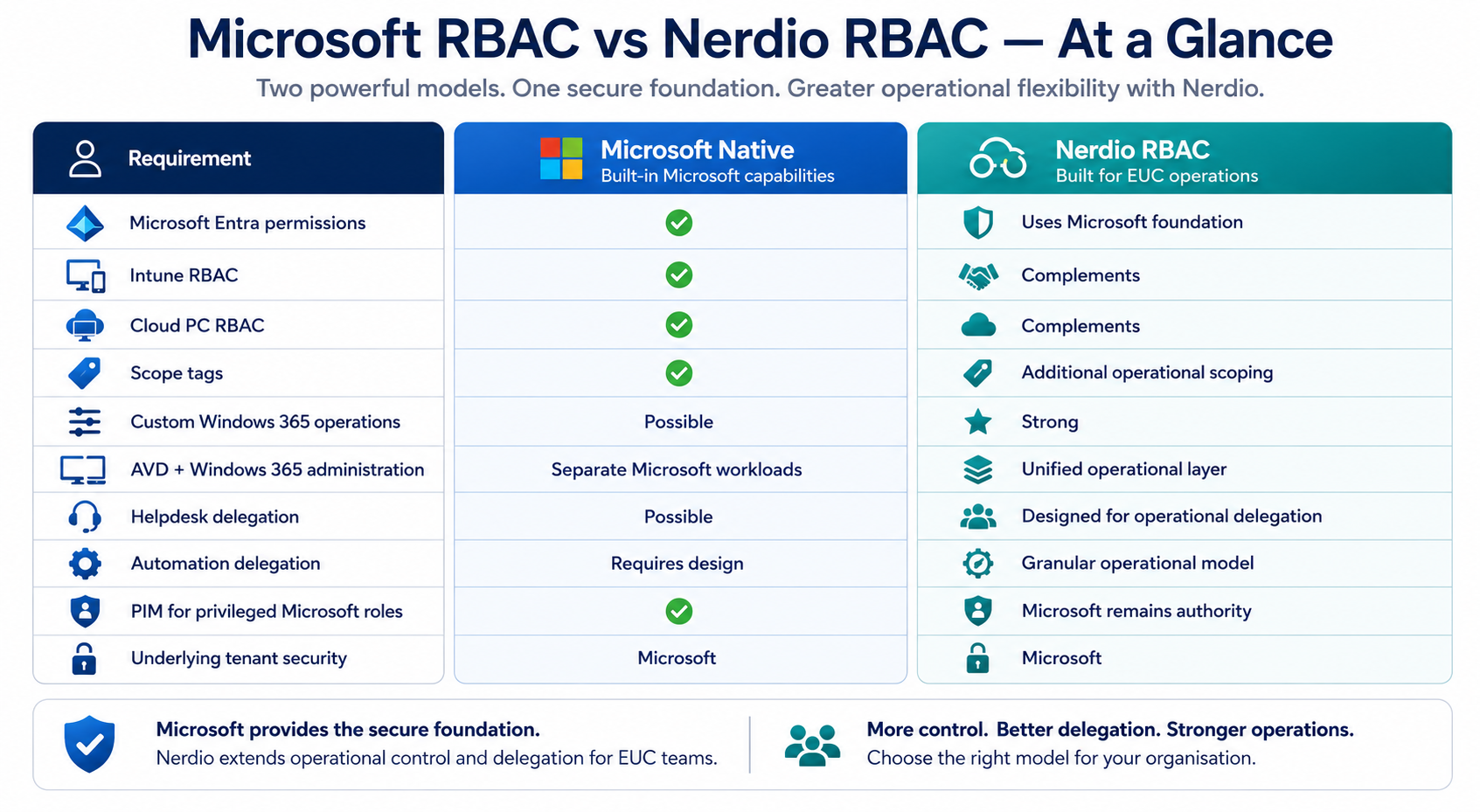
Native Microsoft RBAC vs Nerdio RBAC
For organisations using Nerdio Manager for Enterprise, there is another layer worth considering.
Microsoft RBAC remains the security foundation.
Nerdio can then provide an additional operational delegation model around Windows 365 and Azure Virtual Desktop administration.
This becomes particularly valuable where organisations need:
- Custom operational roles
- Regional delegation
- Business-unit separation
- Helpdesk-specific workflows
- Controlled automation access
- A unified AVD and Windows 365 administration model
- MSP-style delegated administration
The important architectural point is:
Nerdio RBAC complements Microsoft permissions; it doesn't eliminate the underlying Microsoft security model.
We'll explore this relationship in detail in a dedicated article in this Windows 365 series.
Microsoft RBAC vs Nerdio RBAC — At a Glance
| Requirement | Microsoft Native | Nerdio |
|---|---|---|
| Microsoft Entra permissions | ✓ | Uses Microsoft foundation |
| Intune RBAC | ✓ | Complements |
| Cloud PC RBAC | ✓ | Complements |
| Scope tags | ✓ | Additional operational scoping |
| Custom Windows 365 operations | Possible | Strong |
| AVD + Windows 365 administration | Separate Microsoft workloads | Unified operational layer |
| Helpdesk delegation | Possible | Designed for operational delegation |
| Automation delegation | Requires design | Granular operational model |
| PIM for privileged Microsoft roles | ✓ | Microsoft remains authority |
| Underlying tenant security | Microsoft | Microsoft |
Windows 365 RBAC Design Checklist
Before assigning administrative access, ask:
- What tasks does this person actually perform?
- Does the task require Windows 365 permissions?
- Does it require Intune permissions?
- Does it require Microsoft Entra permissions?
- Does it require Azure permissions?
- Can a built-in Intune role satisfy the requirement?
- Would a custom role provide better least privilege?
- Which Cloud PCs should the administrator manage?
- Are Scope Groups required?
- Are Scope Tags required?
- Could multiple role memberships unintentionally increase access?
- Does the administrator genuinely require tenant-wide permissions?
- Could privileged access be delivered through PIM?
- Is administrative activity audited?
- Are role assignments reviewed regularly?
If you can't clearly explain why an engineer requires a permission, consider whether they should have it.
Final Thoughts
Windows 365 RBAC becomes much easier to understand when you stop thinking about it as a single permission system.
Instead, think in layers:
Microsoft Entra = Tenant Authority
Windows 365 RBAC = Cloud PC Authority
Microsoft Intune RBAC = Endpoint Management Authority
Scope Groups & Tags = Administrative Boundary
Azure RBAC = Infrastructure Authority
PIM = Privilege Governance
A mature Windows 365 implementation combines these controls rather than relying on a single powerful administrator role.
The goal isn't:
"What administrator role gives my engineer everything they need?"
The better question is:
"What is the minimum combination of permissions, scope and temporary privilege this person needs to perform their job?"
That shift is what turns Windows 365 RBAC from a collection of Microsoft roles into a proper enterprise security model.
Microsoft Documentation
Windows 365 RBAC
https://learn.microsoft.com/windows-365/enterprise/role-based-access
Microsoft Intune RBAC Overview
https://learn.microsoft.com/intune/fundamentals/role-based-access-control/overview
Microsoft Intune Built-in Roles
https://learn.microsoft.com/intune/intune-service/fundamentals/role-based-access-control-reference
Intune RBAC and Scope Tags
https://learn.microsoft.com/intune/fundamentals/role-based-access-control/scope-tags
Microsoft Entra Built-in Roles
https://learn.microsoft.com/entra/identity/role-based-access-control/permissions-reference
Windows 365 Customer/Azure Permissions
https://learn.microsoft.com/windows-365/enterprise/customer-permissions
Next in the Windows 365 Series
Windows 365 Networking Explained: Microsoft-Hosted Networks vs Azure Network Connections
We'll break down how Cloud PC networking works, when an Azure Network Connection is actually required, Microsoft Entra Join vs Hybrid Join considerations, DNS and private application connectivity, regional design, resilience and enterprise networking best practices.
Click Here To Return To Blog