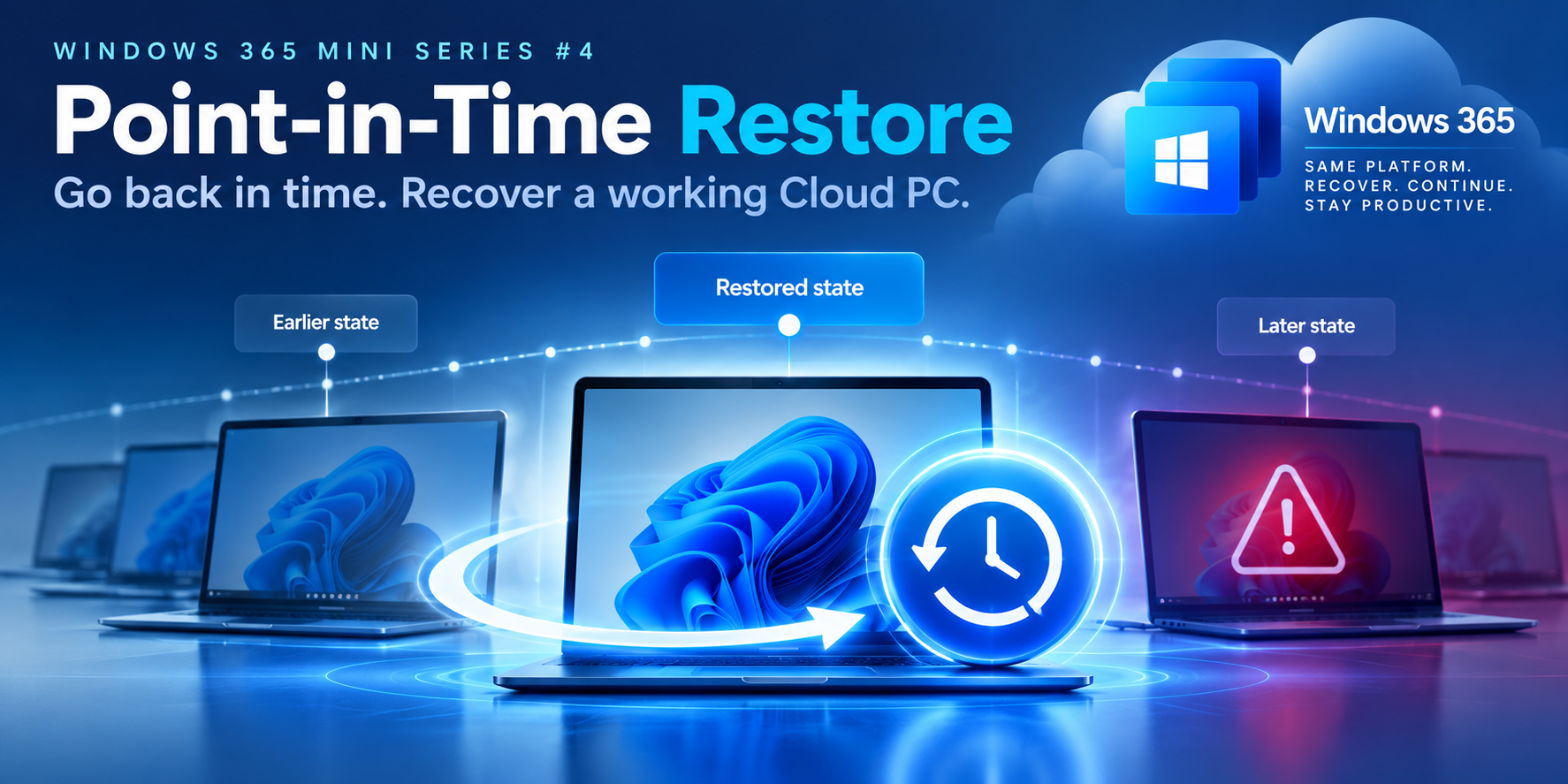
Cloud PC Lifecycle Mini Series #4 | Fabs Solutions
Go back in time. Recover your Cloud PC. Understand what happens to your data.
An application update breaks Windows. A configuration change causes problems. Or a user accidentally deletes important files.
Rather than rebuilding the entire Cloud PC, Windows 365 provides Point-in-Time Restore, allowing administrators to return an existing Cloud PC to an earlier state.
But there's one important consideration:
Any local changes made after the selected restore point can be permanently lost.
1. What actually happens?
Imagine a Cloud PC is working perfectly on Monday.
On Wednesday, a software installation causes problems.
With Point-in-Time Restore, you can return the Cloud PC to its Monday state.
Monday: Cloud PC working correctly
↓
Wednesday: Application update causes problems
↓
Select Monday's restore point
↓
Restore Cloud PC
↓
Cloud PC returns to Monday's state
The existing Cloud PC is restored rather than reprovisioned.
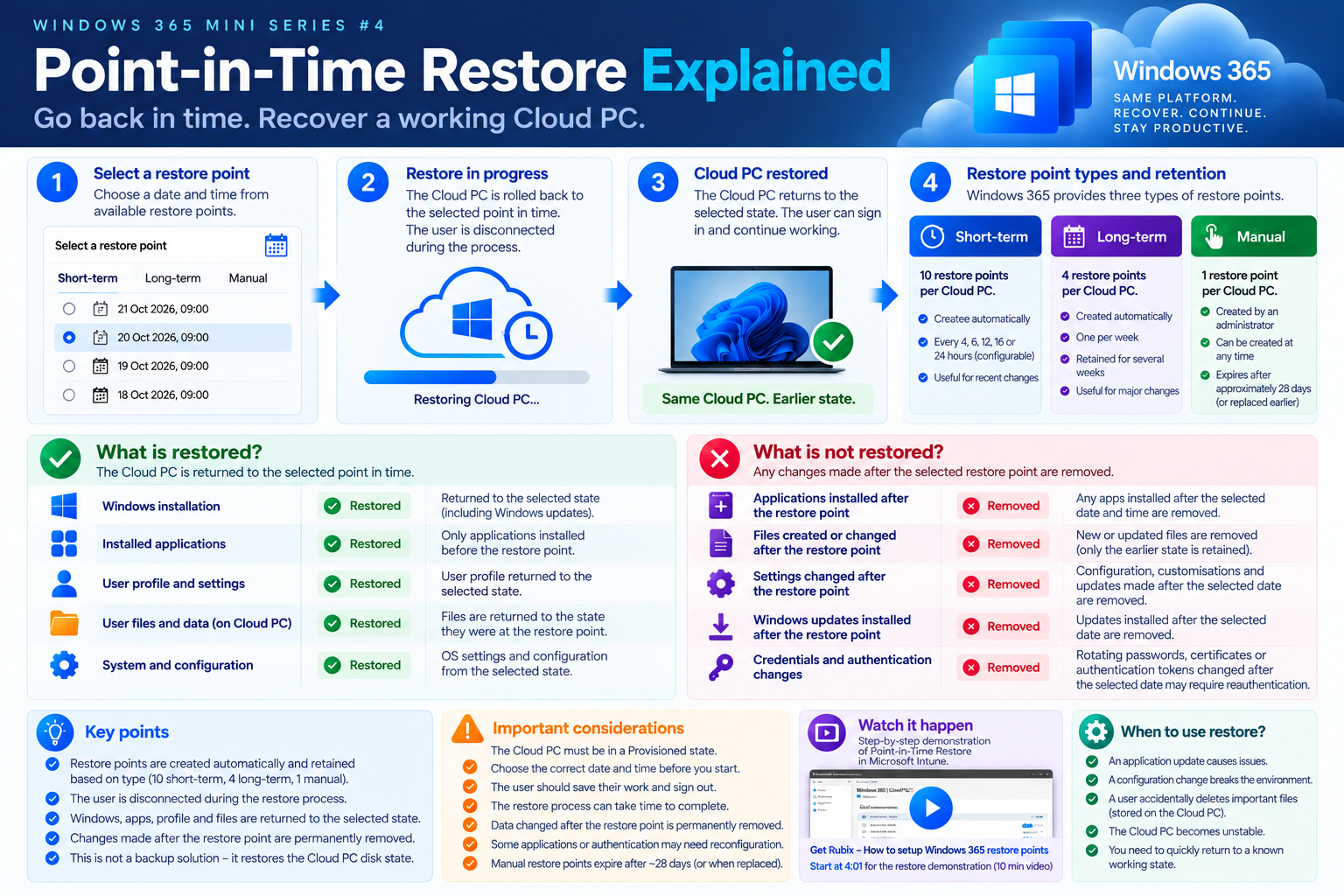
2. Watch it happen
Video: How to setup Windows 365 restore points — Get Rubix
Watch a practical demonstration of the restore process in Microsoft Intune, including selecting a restore point and monitoring the recovery.
3. What happens to Windows, apps and data?
| Component | After Restore | ||
|---|---|---|---|
| Windows installation | Returned to selected restore point | ||
| Windows updates | Updates installed later are rolled back | ||
| Installed applications | Returned to their earlier state | ||
| User profile and settings | Returned to earlier state | ||
| Local files and documents | Returned to earlier state | ||
| Files created after restore point | Lost if stored only on Cloud PC | ||
| Intune management | Management continues; policies may reapply | ||
| Microsoft Defender | Security configuration may be reevaluated | ||
| OneDrive / SharePoint cloud data | Not rolled back by Cloud PC restore |
Important: Local data loss
If the user created a document on Tuesday and you restore the Cloud PC to Monday, the local-only copy of that document will be lost.
Files stored independently in OneDrive or SharePoint aren't rolled back by the Cloud PC restore itself.
Point-in-Time Restore is not a substitute for a proper backup and data protection strategy.
4. How many restore points are available?
Windows 365 Enterprise provides three restore-point types.
| Restore point | Availability | ||
|---|---|---|---|
| Short-term | 10 points, created every 4, 6, 12, 16 or 24 hours | ||
| Long-term | 4 points, created every 7 days | ||
| Manual | One administrator-created point per Cloud PC |
Short-term frequency can be configured through Windows 365 user settings. The long-term points are automatically maintained.
The total available history depends on the type and age of the restore points. Manual restore points expire after approximately 28 days unless replaced earlier.
5. How do I restore a Cloud PC?
In the Microsoft Intune admin center:
Devices → All Cloud PCs → Select Cloud PC → Restore
Select the appropriate restore point, review the confirmation and initiate the restore.
During the process, the Cloud PC displays Restoring and is unavailable to the user.
Once complete, ask the user to reconnect and validate their applications, files and authentication.
6. What happens to passwords and authentication?
This is an important technical consideration.
Windows 365 restores the Cloud PC's earlier system state, but Microsoft Entra ID, Active Directory and external services continue operating independently.
Some applications, device identities and management agents use rotating passwords, certificates, secrets or authentication keys.
If those credentials changed after the selected restore point, the restored Cloud PC may contain older credentials.
Possible consequences include:
- Authentication failures
- Domain or device trust problems
- Applications requiring reauthentication
- Management agents needing to refresh credentials
Best practice: Choose the most recent healthy restore point rather than automatically selecting the oldest available point.
This reduces the risk of data loss and credential mismatches.
7. Fabs Solutions recommendation
Before restoring a production Cloud PC:
1. Identify the last known healthy restore point.
2. Check for important local data created since that time.
3. Confirm the user understands what may be lost.
4. Save or export important data through an appropriate supported method before restoring, where possible.
5. Restore and validate Windows, applications, authentication and management health.
Point-in-Time Restore is particularly useful for recovering from problematic updates, application failures and configuration changes.
But use it carefully: you are rolling back the Cloud PC's disk state, not simply undoing one configuration change.
Key takeaway
- Resize: Same Cloud PC, different resources.
- Reprovision: Delete the existing Cloud PC and create a new one.
- Point-in-Time Restore: Same Cloud PC, earlier state.
The key difference is what happens to the user's environment and data.
Microsoft documentation
Point-in-Time Restore overview
Click Here To Return To Blog