What Does a Windows 365 Provisioning Policy Control?
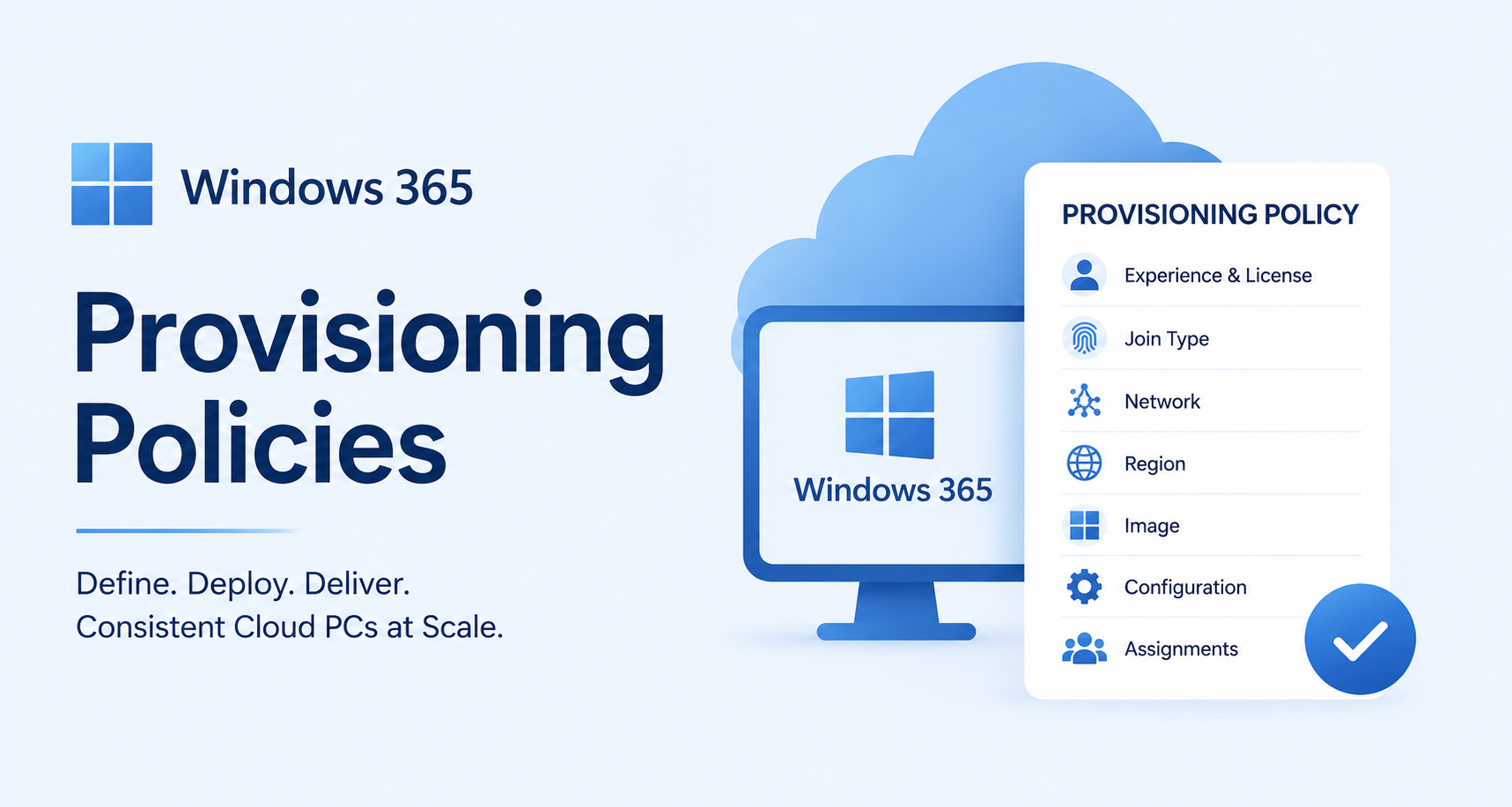
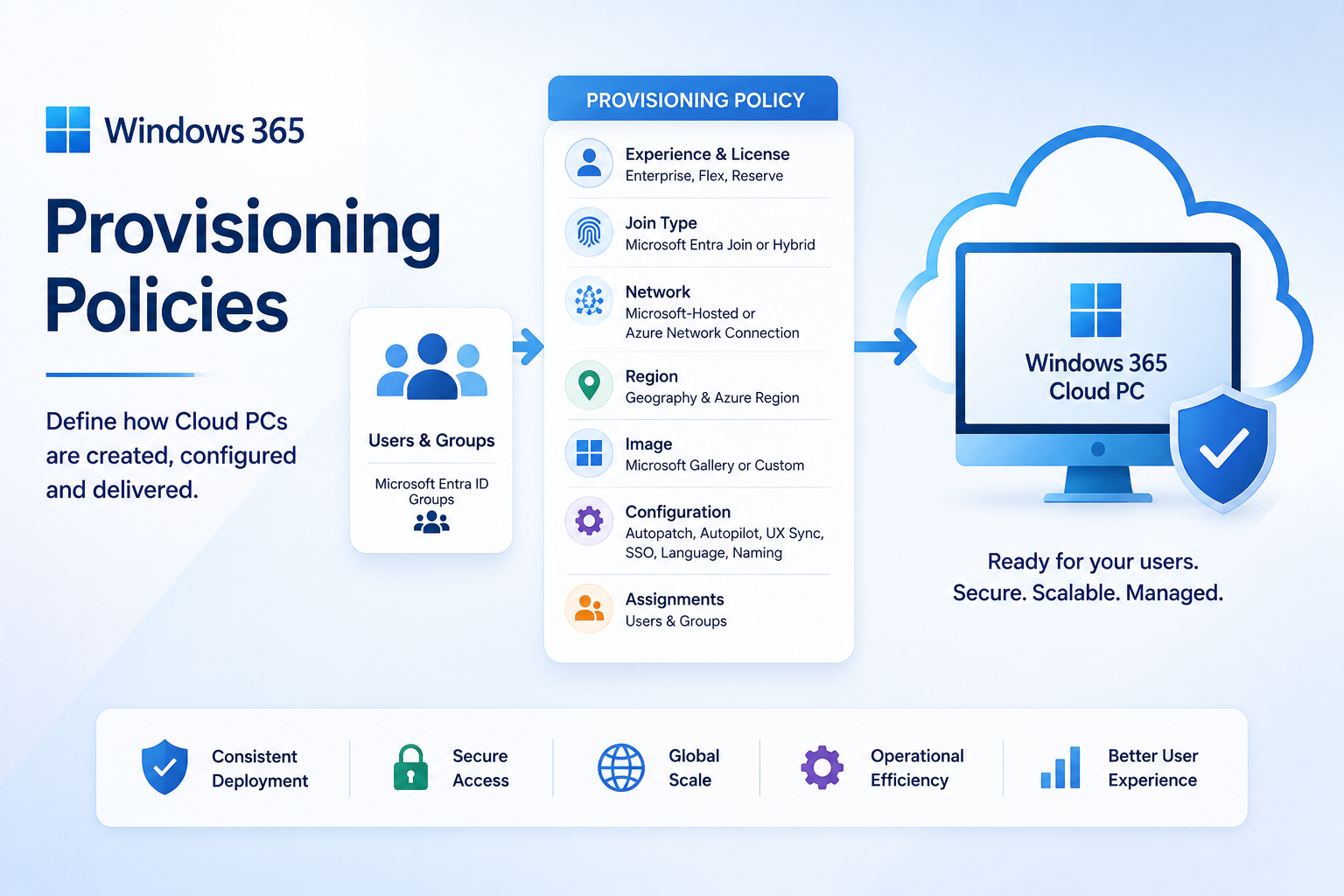
A Windows 365 provisioning policy acts as the deployment blueprint for a Cloud PC. Depending on the Windows 365 offering and configuration selected, it can define or influence:
- Windows 365 experience and license type
- Microsoft Entra join type
- Network connectivity
- Geography and Azure region
- Windows image
- Language and regional settings
- Cloud PC device naming
- Single sign-on
- Windows Autopatch
- Windows Autopilot (Preview)
- User Experience Sync
- Scope tags
- User and group assignments
This is why provisioning policies should be treated as an architectural component rather than simply an administrative mechanism for creating Cloud PCs.
1. Experience and License Type
One of the first decisions when creating a provisioning policy is the Windows 365 experience being deployed.
Microsoft currently exposes provisioning-policy options covering:
- Windows 365 Enterprise
- Windows 365 Flex
- Windows 365 Reserve
Windows 365 Flex is Microsoft's new name for Windows 365 Frontline. During the transition, administrators may still encounter Frontline terminology within parts of Microsoft Intune, Microsoft documentation, APIs, or other management experiences.
The selected Windows 365 offering also affects which experiences can be delivered.
Cloud PC
The traditional Windows 365 experience provides the user with a complete Windows Cloud PC desktop.
The user connects to their Cloud PC and receives a persistent Windows environment containing their applications, settings and data according to the organisation's configuration.
Cloud Apps
An applications-only experience is also available specifically for Windows 365 Flex in Shared mode.
Rather than providing the user with access to a complete Windows desktop, this configuration can provide access to applications delivered from Windows 365 Cloud PCs.
This distinction is important when designing Windows 365 Flex environments.
The apps-only option shouldn't be considered a general Windows 365 Enterprise provisioning option. It is specifically associated with the Windows 365 Flex Shared experience.
2. Microsoft Entra Join Type
One of the most important architectural decisions is how the Cloud PC joins the organisation.
For Windows 365 Enterprise, the primary choices are:
Microsoft Entra Join
The Cloud PC joins Microsoft Entra ID directly.
For most new cloud-first deployments, this should generally be the preferred architecture.
Advantages include:
- No dependency on traditional Active Directory domain controllers
- Simplified provisioning
- Native integration with Microsoft Intune
- Microsoft Entra Conditional Access
- Modern authentication
- Reduced infrastructure dependency
Hybrid Microsoft Entra Join
The Cloud PC joins traditional Active Directory and is represented within Microsoft Entra ID.
This can still be necessary where organisations depend on:
- Legacy authentication
- Active Directory computer objects
- Group Policy
- Legacy applications
- Domain-based management
- Existing on-premises network dependencies
Hybrid join requires an Azure Network Connection (ANC).
Fabs Recommendation
For greenfield Windows 365 deployments:
Prefer Microsoft Entra Join unless there is a genuine technical dependency requiring Hybrid Join.
Avoid implementing Hybrid Join simply because the existing physical desktop estate uses it.
Windows 365 can be an opportunity to modernise the endpoint architecture rather than replicate legacy dependencies in the cloud.
3. Microsoft-Hosted Network vs Azure Network Connection
For Microsoft Entra joined Cloud PCs, organisations can choose between two broad networking approaches.
Microsoft-Hosted Network
Microsoft manages the Cloud PC network infrastructure.
This removes much of the Azure networking requirement from the customer.
Microsoft-hosted networking is particularly attractive where applications and services are:
- SaaS based
- Internet accessible
- Microsoft 365 based
- Accessible through modern Zero Trust networking
- Not dependent upon traditional private network connectivity
Azure Network Connection
An Azure Network Connection allows Cloud PCs to connect through networking within the customer's Azure environment.
This becomes useful where Cloud PCs require connectivity to:
- Private applications
- Domain controllers
- Azure private endpoints
- Internal DNS
- Private databases
- Legacy applications
- Network security appliances
- Existing hub-and-spoke architectures
ANCs are mandatory for Hybrid Microsoft Entra Join and optional for Microsoft Entra Join.
Alternate Azure Network Connections
An important capability for larger Windows 365 environments is the ability to associate multiple Azure Network Connections with a provisioning policy.
Administrators can place ANCs into a priority order.
Windows 365 normally uses the first healthy ANC. If that connection isn't healthy, it can move to the next healthy ANC in the configured list.
This is particularly useful when designing Windows 365 for resilience.
Instead of thinking:
Provisioning Policy → One Network
enterprise architects can increasingly think:
Provisioning Policy → Preferred ANC → Alternate ANC
This can reduce provisioning dependencies on a single network path.
4. Geography and Azure Region
Cloud PC placement deserves careful consideration.
When using a Microsoft-hosted network, administrators can select the geography and control regional placement.
Microsoft currently provides options including:
- All default regions within a geography
- A region group
- A specific region
- Multiple selected regions
Microsoft recommends using all default regions within the selected geography where appropriate because this maximises provisioning availability and regional resiliency.
There is also an Auto opt-in capability that can automatically include future supported regions as Microsoft's Windows 365 footprint expands.
Don't Select a Region Based Only on User Location
Consider three things:
User location
Where is the person connecting from?
Application location
Where do the applications they consume reside?
Data location
Where is the data those applications access?
The geographically closest Azure region to the user isn't necessarily the best location if every application transaction then has to travel to infrastructure on another continent.
5. Windows Image
The provisioning policy determines the Windows image used to build the Cloud PC.
There are two main options.
Microsoft Gallery Image
Microsoft provides maintained Windows images that can be selected directly during provisioning.
For many organisations this should be the default.
Benefits include:
- Microsoft-maintained image
- Reduced image engineering
- Faster adoption of newer Windows versions
- Less operational overhead
- Simpler lifecycle management
Custom Image
Organisations can alternatively provide a customised Windows image.
This may be appropriate where the business requires:
- Pre-installed applications
- Specialist software
- Complex application dependencies
- Custom Windows configuration
- Legacy applications that are difficult to deploy dynamically
However, custom images introduce an additional lifecycle that must be maintained.
Fabs Recommendation
Where possible:
Gallery Image + Intune Application Deployment + Configuration Policies
is preferable to:
Large heavily customised Windows image
This helps separate the operating system from the application and configuration layers.
It also makes Cloud PC replacement and re-provisioning significantly easier to manage.
Image Lifecycle Is Important
Provisioning policies are also affected by Windows operating system lifecycle.
Microsoft exposes an Image status against provisioning policies to help administrators identify images approaching or beyond support.
An unsupported image can eventually prevent new provisioning and reprovisioning operations.
Therefore image lifecycle management should be incorporated into Windows 365 operational governance rather than treated as a one-time deployment task.
Microsoft: Windows 365 operating system and image support lifecycle
6. Language and Region
Provisioning policies can define the Windows Language & Region presented to users.
Windows 365 installs the appropriate language pack during provisioning so that users receive the intended language experience from their first sign-in.
This becomes particularly valuable for multinational environments.
Rather than creating different images for:
- UK
- France
- Germany
- Spain
- Netherlands
organisations can potentially use a common image while separating regional requirements through provisioning policies.
Microsoft: Configure the default Cloud PC display language
7. Cloud PC Device Naming
Windows 365 provisioning policies support a device name template, enabling organisations to apply a predictable naming standard to newly provisioned Cloud PCs.
For example:
W365-UK-%RAND:5%
could produce a device name similar to:
W365-UK-A7F3Q
However, Windows device naming restrictions must be considered when designing the template.
Microsoft currently specifies that:
- The device-name prefix can contain 10 or fewer characters.
- The complete device name must contain between 5 and 15 characters.
%RAND:Y%can be used to append a randomly generated string.Ymust be 5 or greater.- Underscores aren't supported within the device name.
- The resulting name must comply with Windows device-name requirements.
Therefore:
W365-UK-%RAND:5%
is valid:
Prefix: W365-UK- = 8 characters
Random value: 5 characters
Resulting length: 13 characters
Using the Username Macro
Windows 365 also supports the %USERNAME:X% macro for supported Windows 365 Enterprise and Windows 365 Flex Dedicated scenarios.
This allows part of the user's username to be incorporated into the Cloud PC device name.
For example, an organisation could construct a naming convention that combines an organisational prefix with a portion of the username.
This can make devices easier to identify during:
- Service desk troubleshooting
- Microsoft Intune administration
- Microsoft Entra investigations
- Security incident response
- Inventory and CMDB reconciliation
However, there is an architectural trade-off.
Embedding usernames within device names creates a relationship between the device identity and the current user identity.
For environments where Cloud PCs may be reassigned, replaced, restored, reprovisioned or managed through automation, a non-user-specific naming convention can sometimes be easier to maintain.
8. Scope Tags
Intune Scope Tags can be associated with Windows 365 provisioning policies.
This becomes particularly important when combined with the RBAC architecture discussed in the first article in this series.
For example:
UK Windows 365 Team
Scope:
<span>W365-UK</span>
US Windows 365 Team
Scope:
<span>W365-US</span>
EMEA Service Desk
Scope:
<span>W365-EMEA</span>
The result is not simply role-based access.
You can begin designing administration around:
RBAC Role + Scope + Responsibility
This provides much stronger administrative separation for large enterprises and MSP environments.
9. Assignments
Finally, the provisioning policy must be assigned to users.
Assignments are made using:
- Microsoft Entra security groups
- Microsoft 365 Groups
Nested groups aren't currently supported for provisioning policy assignments.
For Windows 365 Enterprise, users must also have an appropriate Windows 365 licence.
Microsoft then evaluates the assignment and provisions the Cloud PC.
Microsoft: Assign Windows 365 licences
10. Additional Services and Cloud PC Configuration
Provisioning policies now extend beyond the core decisions of network, image, region and identity.
The Configuration stage of a provisioning policy can also expose additional Windows services and Cloud PC experience settings.
Depending on the Windows 365 offering and configuration, these can include:
Windows Autopatch
Windows Autopatch can be integrated into the Cloud PC provisioning configuration to help organisations automate Windows update management.
For organisations adopting Windows 365 at scale, this can reduce the operational burden associated with:
- Windows quality updates
- Windows feature updates
- Microsoft 365 Apps updates
- Microsoft Edge updates
- Driver and firmware updates where applicable
Autopatch should therefore be considered during the Windows 365 operational design rather than after the Cloud PC estate has already been deployed.
Windows Autopilot — Preview
Microsoft also exposes Windows Autopilot integration within supported Windows 365 provisioning-policy scenarios.
At the time of writing, this capability is Preview, so organisations should evaluate Microsoft's current support status and limitations before using it within production designs.
As with any preview capability, avoid assuming that configuration, behaviour or support boundaries will remain unchanged when the feature reaches general availability.
User Experience Sync
Provisioning policies can also incorporate User Experience Sync where supported.
This is particularly interesting for Windows 365 environments where users may interact with different Cloud PCs or Windows 365 experiences and organisations want to provide greater consistency across the user experience.
Rather than treating these capabilities as separate operational considerations, architects should review them as part of the provisioning-policy design.
The policy is increasingly becoming the point at which organisations define not only how a Cloud PC is created, but also which Windows 365 platform services should participate in its lifecycle.
A Critical Design Consideration: Multiple Policies
This is one of the most important points when designing Windows 365.
For each Windows 365 Enterprise Cloud PC licence assigned to a user, only one provisioning policy is used.
If the user falls within groups assigned to multiple provisioning policies, Windows 365 uses the first assigned policy to provision the Cloud PC.
That means group architecture matters.
Poorly designed group membership can result in unexpected provisioning behaviour.
Avoid uncontrolled overlapping policy assignments.
Instead, design deliberate groups such as:
<span>W365-UK-Standard</span>
<span>W365-UK-Developers</span>
<span>W365-US-Standard</span>
<span>W365-Finance</span>
<span>W365-Contractors</span>
This makes the intended provisioning outcome much easier to understand and troubleshoot.
What Happens When You Change a Provisioning Policy?
This is another area that administrators need to understand.
Changing a provisioning policy doesn't necessarily modify existing Cloud PCs.
For Windows 365 Enterprise, changes such as:
- Image
- Network
- Region
- Single sign-on
can have different behaviours.
Newly provisioned or reprovisioned Cloud PCs use the updated policy.
Existing Cloud PCs don't simply rebuild themselves because the policy changed.
For example:
Image change
Existing Cloud PCs require re-provisioning to receive the new image.
Region or SSO change
Administrators can use Apply this configuration for supported changes.
Understanding this distinction is essential before making production policy changes.
Microsoft: Edit Windows 365 provisioning policies
Recommended Enterprise Provisioning Policy Design
Rather than creating a policy for every department, start by identifying actual technical differences.
| Requirement | Separate Policy? | |
|---|---|---|
| Different geography | Yes | |
| Different network | Yes | |
| Different image | Usually | |
| Different language | Usually | |
| Different join type | Yes | |
| Different SSO configuration | Yes | |
| Different department name only | No | |
| Different application | Not necessarily | |
| Different Intune configuration | Usually no | |
| Different security policy | Usually no |
This distinction is important.
Don't use provisioning policies to solve every configuration requirement.
Use the appropriate management layer.
Provisioning Policy
Controls how the Cloud PC is created.
Microsoft Intune
Controls how the Cloud PC is configured and managed.
Microsoft Entra
Controls identity and access.
Conditional Access
Controls the conditions under which the user can access the service.
Keeping these responsibilities separate produces a much cleaner Windows 365 architecture.
Example Global Windows 365 Design
Consider an organisation with users in:
United Kingdom
Microsoft Entra Join
Microsoft-hosted network
UK/European geography
English UK
United States
Microsoft Entra Join
Microsoft-hosted network
US geography
English US
Legacy Finance Users
Hybrid Microsoft Entra Join
Azure Network Connection
Custom image
Private application connectivity
Rather than maintaining dozens of provisioning policies, the organisation may only need three.
The objective should be:
Create a new provisioning policy when there is a genuine provisioning architecture difference — not simply because there is a different business department.
Provisioning Policy Design Checklist
Before creating a production policy, confirm:
- What Windows 365 licence type is being used?
- Does the user need a full Cloud PC or another supported experience?
- Microsoft Entra Join or Hybrid Microsoft Entra Join?
- Microsoft-hosted network or ANC?
- Where are the users located?
- Where are their applications located?
- Where is their data located?
- Which Azure geography/region is appropriate?
- Is regional resilience required?
- Gallery or custom image?
- Who owns the image lifecycle?
- What language should users receive?
- What device naming convention is required?
- Are Intune scope tags required?
- Which Microsoft Entra group receives the policy?
- Could users accidentally fall into multiple provisioning policies?
- Is SSO enabled?
- Who has permission to modify the policy?
- How will changes be tested before production?
Final Thoughts
Windows 365 makes Cloud PC provisioning appear deceptively simple.
Assign a licence, create a policy, assign a group and Windows 365 handles much of the infrastructure.
But at enterprise scale, the provisioning policy becomes an important architectural boundary.
A well-designed policy strategy should minimise unnecessary policy sprawl while deliberately separating Cloud PCs where there are genuine differences in:
Identity → Network → Geography → Image → Configuration → Assignment
Get these foundations right and Windows 365 becomes significantly easier to operate, secure and scale.
Get them wrong and administrators can quickly end up managing dozens of overlapping policies, images, groups and network dependencies.
The goal isn't to create more provisioning policies.
The goal is to create the minimum number of provisioning policies required to represent genuine Cloud PC architecture differences.
Microsoft Documentation
Create provisioning policies for Windows 365
Windows 365 provisioning overview
Automated Cloud PC provisioning steps
Edit Windows 365 provisioning policies
View Windows 365 provisioning policies
Next in the Windows 365 Series
Windows 365: Microsoft Intune Roles vs Windows 365 Roles
We'll look at the difference between Microsoft Entra roles, Intune RBAC and Windows 365 permissions — and build a practical least-privilege administration model for enterprise Cloud PC environments.
Updated Provisioning Policy Design Checklist
Before creating a production provisioning policy, confirm:
- Which Windows 365 offering is being deployed: Enterprise, Flex or Reserve?
- Does the user require a complete Cloud PC?
- If using an applications-only experience, is this Windows 365 Flex Shared?
- Microsoft Entra Join or Hybrid Microsoft Entra Join?
- Microsoft-hosted network or Azure Network Connection?
- Where are the users located?
- Where are the applications located?
- Where is the data located?
- Which geography and Azure region are appropriate?
- Is multi-region provisioning appropriate?
- Is regional resilience required?
- Microsoft gallery image or custom image?
- Who owns the image lifecycle?
- What Windows language and region should users receive?
- What Cloud PC device naming convention will be used?
- Does the naming convention meet Microsoft's 5–15 character requirements?
- Does
<span>%RAND:Y%</span>use at least five random characters? - Is
<span>%USERNAME:X%</span>appropriate for the environment? - Have unsupported characters such as underscores been avoided?
- Should Windows Autopatch be enabled?
- Is Windows Autopilot integration required and is its current Preview status acceptable?
- Is User Experience Sync required?
- Is Windows 365 single sign-on enabled?
- Are Intune scope tags required?
- Which Microsoft Entra or Microsoft 365 group receives the provisioning policy?
- Could users unintentionally fall within multiple provisioning-policy assignments?
- Who has RBAC permission to modify the provisioning policy?
- How will policy changes be tested before production?
- What is the rollback or recovery approach if a policy change causes an unexpected provisioning outcome?
Updated Final Thoughts
Windows 365 makes Cloud PC provisioning appear deceptively simple.
Assign a licence, create a provisioning policy, assign a group and Windows 365 handles much of the underlying infrastructure.
At enterprise scale, however, the provisioning policy becomes an important architectural boundary.
Modern provisioning policies can influence much more than the initial deployment of a virtual machine:
Experience → Identity → Network → Geography → Image → Configuration → Platform Services → Assignment
Capabilities such as Windows Autopatch, Windows Autopilot integration, User Experience Sync and increasingly flexible Windows 365 experiences mean the provisioning policy should form part of the organisation's wider endpoint architecture.
The objective shouldn't be to create a policy for every department, application or organisational unit.
Instead:
Create a new provisioning policy when there is a genuine provisioning or Cloud PC architecture difference — not simply because there is a different business department.
Getting that design right creates a Windows 365 environment that is considerably easier to operate, secure and scale.
Click Here To Return To Blog