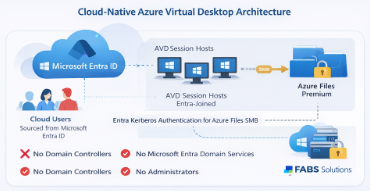
Entra-Only Identities: A Fully Cloud-Native AVD + FSLogix Architecture (No Domain Controllers)
🚀 Why This Matters
For years, running Azure Virtual Desktop (AVD) with FSLogix meant one unavoidable dependency:
Windows Active Directory or Microsoft Entra Domain Services.
Microsoft has now introduced a public preview capability that removes this requirement entirely by enabling Microsoft Entra Kerberos authentication for Azure Files SMB with cloud-only identities.
This unlocks a true Entra-only AVD deployment model.
✅ What This Architecture Unlocks
- 👤 Cloud-only users sourced directly from Microsoft Entra ID
- 🖥️ Entra-joined AVD session hosts
- 📁 FSLogix profile containers on Azure Files
- 🔐 Microsoft Entra Kerberos authentication for SMB
- ❌ No Domain Controllers
- ❌ No Microsoft Entra Domain Services
⚠️ Important Preview Notice
This capability is in early public preview, so expect:
- Documentation updates
- Portal UI differences (including preview-only links)
- Changing prerequisites and limitations
FABS Recommendation: Treat this as Lab → Pilot → Production.
🧩 Prerequisites (Read This First)
Operating System Requirements
Entra Kerberos for cloud-only identities requires:
- Windows 11 Enterprise / Pro (single or multi-session), or
- Windows Server 2025
- Latest cumulative updates installed
Identity Source Limitation
A storage account can authenticate against one directory source only:
- Windows AD or
- Entra Domain Services or
- Entra Kerberos (cloud-only)
Share-Level Permissions (Preview Limitation)
In this preview, default share-level permissions are required for Azure Files access.
Recommended Test Design
- AVD host pool with Entra-joined session hosts
- Azure Files Premium
- Two Entra groups:
AVD-Storage-AdminsAVD-Cloud-Users
🔄 End-to-End Configuration Flow (Diagram)
🛠️ Step-by-Step Configuration
Step 1 — Create Azure Files Share with Entra Kerberos
Using Nerdio Manager:
- Storage → Azure Files → New Azure Files
- Configure storage account, performance, replication, and share
- Enable Share-level permissions
- Assign SMB Share Contributor
- Enable Join AD or Entra ID → Entra ID
- Set NTFS permissions to None
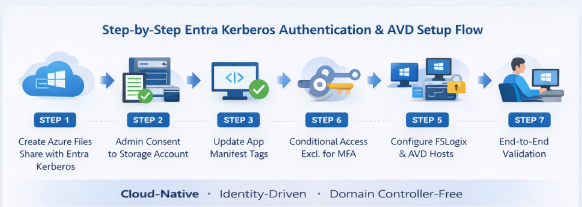
Step 2 — Grant Admin Consent to Storage Account App
- Microsoft Entra ID → App registrations
- Locate:
[Storage Account xxx.file.core.windows.net] - API permissions → Grant admin consent
This is required once per storage account.
Step 3 — Update Application Manifest (Preview Requirement)
In the app registration manifest, add:
Expected to be automated at GA.
Step 4 — Conditional Access: Exclude Storage Account from MFA
Entra Kerberos does not support MFA for SMB.
- Locate CA policies targeting All cloud apps
- Add exclusion for the Storage Account app
Failure to do this commonly results in System error 1327.
Step 5 — Configure FSLogix & Session Hosts
Using Nerdio Manager:
- Enable Configure session hosts registry for Entra ID joined storage
Set
VHDLocation:
⚠️ Hybrid environments may require realm mapping.
Step 6 — Secure Directory & File-Level Permissions (Critical)
Preview portal:
https://aka.ms/portal/fileperms
Permissions model:
- CREATOR OWNER – retained
- Storage Admins – Full control
- Cloud Users – Modify (this folder only)
This ensures users can access only their own profile containers.
Step 7 — End-to-End Validation
- Log in as a cloud user → session loads successfully
- Verify user folder creation
- Confirm ACLs via:
- Azure Portal → Manage access
- Windows folder security view
🚀 Operational Guidance for Production
- Keep MFA for interactive sign-in
- Exclude storage account app from MFA
- Monitor preview updates closely
- Expect this capability to become foundational for AVD + FSLogix
📚 References
Microsoft
- Entra Kerberos authentication for Azure Files SMB https://learn.microsoft.com/en-us/azure/storage/files/storage-files-identity-auth-hybrid-identities-enable?tabs=azure-portal%2Cintune
- FSLogix profile containers with Entra Kerberos https://learn.microsoft.com/en-us/fslogix/how-to-configure-profile-container-entra-id-hybrid?utm_source=chatgpt.com&pivots=hybrid-identities
- Assign share-level permissions https://learn.microsoft.com/en-us/azure/storage/files/storage-files-identity-assign-share-level-permissions?utm_source=chatgpt.com&tabs=azure-portal
- Configure Windows ACLs via Azure Portal https://learn.microsoft.com/en-us/azure/storage/files/storage-files-identity-configure-file-level-permissions
- Configure SMB Storage Permissions: https://learn.microsoft.com/en-us/fslogix/how-to-configure-storage-permissions
- Configure Directory and File level permissions for Azure FIle Storage: https://learn.microsoft.com/en-us/azure/storage/files/storage-files-identity-configure-file-level-permissions
- Introduction to Microsoft Kerberos Authentication https://learn.microsoft.com/en-us/entra/identity/authentication/kerberos
Click Here To Return To Blog