Same Cloud PC. Different resources. No rebuild required.
Your Cloud PC is running slowly, or perhaps you're paying for more computing power than the user needs.
With Windows 365 Resize, you can change the CPU, memory or storage allocation without rebuilding the user's desktop.
Unlike Reprovision, Resize preserves Windows, installed applications, the user profile and disk data.
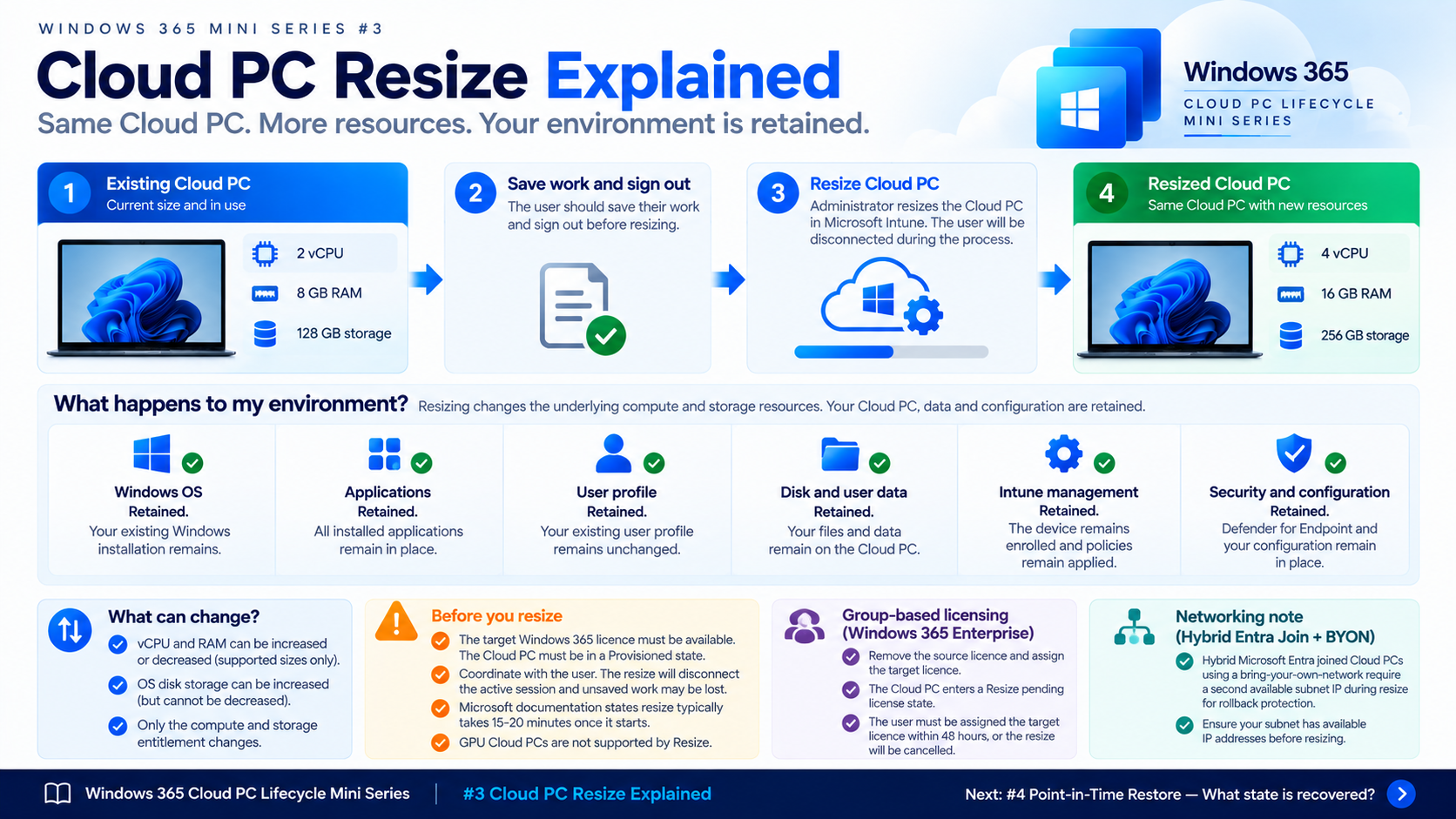
1. What actually happens?
Before: 2 vCPU | 8 GB RAM | 128 GB storage
↓
Resize in Microsoft Intune
↓
After: 4 vCPU | 16 GB RAM | 128 GB storage
The user returns to their existing Windows environment, now with additional resources.
2. Watch it happen
Microsoft Mechanics — How to set up Windows 365 (2025 tutorial)
This Microsoft-produced demonstration shows Cloud PC specification management as part of a wider Windows 365 walkthrough.
Embed the Microsoft Mechanics video here, starting at 11:36.
3. What happens to the existing Cloud PC?
| Component | After Resize | |
|---|---|---|
| Windows installation | ✅ Retained | |
| Installed applications | ✅ Retained | |
| User profile | ✅ Retained | |
| Local files and data | ✅ Retained | |
| Intune management | ✅ Retained | |
| Security configuration | ✅ Retained | |
| CPU and RAM | 🔄 Increased or decreased | |
| Storage | ⬆️ Increase only |
Remember: Resize changes the resources, not the user's Windows environment.
4. Before you click Resize
Make sure the Cloud PC is in the Provisioned state and the appropriate target Windows 365 licence is available.
Ask the user to save their work and sign out. Resize disconnects the active session and normally involves a short period of unavailability.
For Windows 365 Enterprise, navigate to:
Microsoft Intune → Devices → All Devices → Select Cloud PC → Resize
Choose an available size and confirm.
Important: Group-based licensing requires additional licence-assignment steps. Hybrid Microsoft Entra joined Cloud PCs using customer-managed networking also require spare subnet IP capacity.
5. Fabs Solutions recommendation
Don't resize a Cloud PC simply because a user reports poor performance.
Check CPU, memory, storage and connection quality first. A slow application might be caused by network latency or its backend service rather than insufficient Cloud PC resources.
Measure → Resize → Validate
Microsoft documentation: Resize a single Cloud PC | Cloud PC resizing overview
Resize vs Reprovision
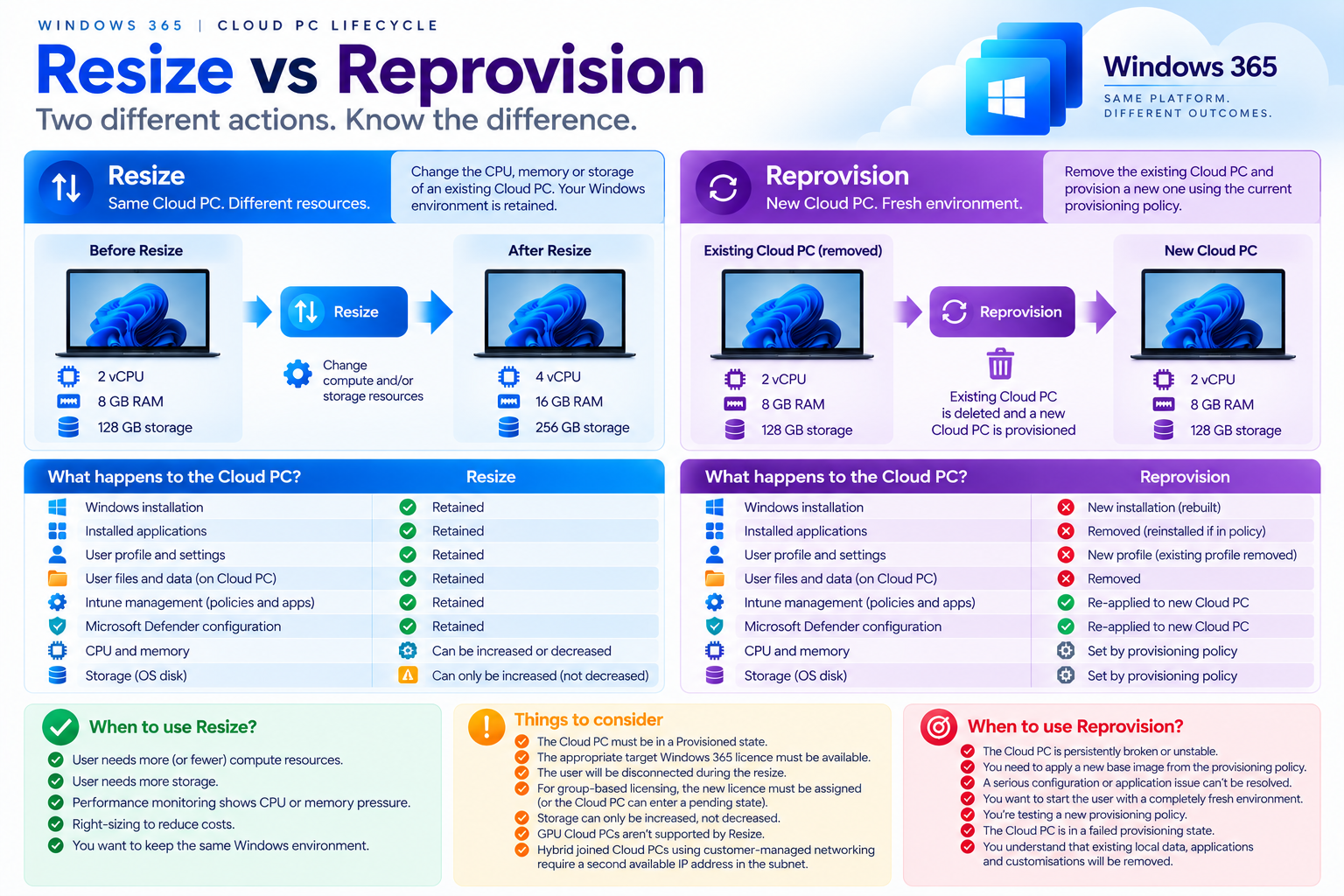
This is the most important comparison from the first three articles in this series.
| Resize | Reprovision | |
|---|---|---|
| Same Cloud PC environment | ✅ | ❌ |
| Windows retained | ✅ | ❌ |
| Applications retained | ✅ | ❌ |
| User profile retained | ✅ | ❌ |
| Disk/user data retained | ✅ | ❌ |
| Changes CPU/RAM | ✅ | Not its purpose |
| Can increase storage | ✅ | Depends on new entitlement |
| Can decrease storage | ❌ | — |
| Rebuilds Windows | ❌ | ✅ |
| User interruption | ✅ | ✅ |
| Destructive rebuild | ❌ | ✅ |
Microsoft specifically describes Resize as preserving user/disk data without reprovisioning, whereas Reprovision deletes the existing Cloud PC and its local contents. Microsoft Learn
What Happens to Intune?
The Cloud PC remains managed.
You're not deliberately creating a fresh endpoint and starting the management lifecycle again as you would during Reprovision.
Your Intune policies, application assignments and management relationship therefore remain associated with the Cloud PC.
Think:
Managed Cloud PC
↓
Resize
↓
Managed Cloud PC with different resources
rather than:
Managed Cloud PC
↓
❌ Delete
↓
🆕 Enrol new Cloud PC.
What Happens to Microsoft Defender?
The same principle applies to your endpoint security configuration.
Resize isn't intended to replace the Cloud PC with a completely new device.
Your security and management configuration therefore remains with the environment rather than being rebuilt from scratch.
That makes Resize particularly useful when monitoring shows that the hardware specification is the problem rather than Windows itself.
When Should I Resize a Cloud PC?
Microsoft specifically identifies scenarios such as users needing additional RAM/vCPU for CPU-intensive applications, requiring additional storage, or needing fewer compute resources for their current workload. Microsoft Learn
This makes Resize useful for both:
Performance optimisation & Cost optimisation
Imagine Endpoint Analytics shows:
- CPU: consistently high
Memory: consistently high
Storage: healthy
The answer might be: Increase CPU/RAM
Alternatively:
- CPU: consistently low
Memory: consistently low
Storage: sufficient
You might consider whether the user is over-provisioned and whether a smaller compute configuration is appropriate.
Microsoft specifically calls out using Endpoint Analytics to assess compute and memory load and then resizing Cloud PCs to better match users and applications. Microsoft Learn
Resize Should Be Evidence-Based
Don't automatically give everyone the largest Cloud PC available.
And don't automatically choose the smallest configuration to save money.
Instead:
Measure
↓
Understand workload
↓
Identify constraint
↓
Select appropriate size
↓
Resize
↓
Measure again
For example, poor user experience might actually be caused by:
- Network latency
- Application backend performance
- Profile issues
- Authentication delays
- Application problems
rather than insufficient vCPU or RAM.
Resize should solve a resource-sizing problem, not become a generic troubleshooting button.
Licensing Is Important
For Windows 365 Enterprise, the Cloud PC size is tied to the Windows 365 licence assigned to the user. Microsoft Learn
The resize process therefore has a licensing component.
The exact workflow differs depending on how licences are assigned.
Direct-Assigned Licences
If the Cloud PC was provisioned using a directly assigned licence, Windows 365 can handle the licence change on behalf of the administrator during Resize.
Microsoft documents the service as automatically:
Unassigning the original licence
and:
Assigning the new licence
when the appropriate target licence is available. Microsoft Learn
This makes the workflow relatively straightforward.
Group-Based Licensing
Group-based licensing requires more attention.
When a Cloud PC uses a group-based Windows 365 licence and Resize is initiated, it can enter:
Resize pending license
Windows 365 then waits for the required licensing changes.
Two things need to happen:
- Original/source licence removed
- New/target licence assigned
Resize begins
The order of those two licence operations doesn't matter, but both must occur before the actual resize starts. Microsoft Learn
The 48-Hour Resize Window
This introduces another lifecycle state worth understanding.
A Cloud PC can remain in Resize pending license for up to 48 hours while Windows 365 waits for the licensing changes.
If the original licence is removed but the new licence isn't assigned within that period:
The Cloud PC enters Grace Period → If the original licence isn't removed and the target licence isn't assigned within the 48-hour period:
The Cloud PC returns to Provisioned. Microsoft Learn
We'll explore Grace Period properly later in this lifecycle series.
Separate Your Licensing and Provisioning Groups
There's a useful architectural lesson here.
Microsoft recommends following Windows 365 licensing best practices before using Resize and notes that the process is simpler when you use separate Microsoft Entra groups for licence assignment and provisioning-policy targeting. Microsoft Learn
For example: Group A – W365 Licence Assignment
controls: What Cloud PC entitlement does the user have?
While: Group B – W365 Provisioning Policy
controls: How should their Cloud PC be provisioned?
Keeping those responsibilities separate can make lifecycle operations such as Resize easier to control.
Important Networking Consideration
There is another requirement that can easily be missed.
For a Microsoft Entra hybrid joined Cloud PC using bring-your-own networking, Microsoft requires a second IP address to be available in the subnet during Resize.
Windows 365 temporarily uses that second address as part of the resize process so that it can roll back if a problem occurs.
If there aren't sufficient addresses available, the resize can fail. Microsoft Learn
This becomes particularly important when performing bulk resize operations against tightly sized subnets.
Can GPU Cloud PCs Be Resized?
Currently:
❌ GPU Cloud PCs aren't supported by Resize.
Microsoft notes that GPU Cloud PCs might appear in the resize workflow, but attempting the resize results in an error. Microsoft Learn
This is a good example of why administrators shouldn't assume that every Windows 365 SKU supports every lifecycle operation identically.
Single vs Bulk Resize
Resize isn't limited to one user at a time.
Administrators can resize:
A single Cloud PC
or:
Multiple Cloud PCs in bulk.
Microsoft currently supports bulk resize operations of up to 5,000 Cloud PCs at a time, although Microsoft recommends testing with a smaller group before making a large-scale change. Microsoft Learn
For enterprise environments, that's particularly useful when:
- A department changes workload
- A standard persona is resized
- Licence SKUs are being changed
- Cost optimisation identifies over-sized Cloud PCs
Currently:
❌ GPU Cloud PCs aren't supported by Resize.
Microsoft notes that GPU Cloud PCs might appear in the resize workflow, but attempting the resize results in an error. Microsoft Learn
This is a good example of why administrators shouldn't assume that every Windows 365 SKU supports every lifecycle operation identically.
Fabs Solutions – The Simple Rule
For someone new to Windows 365, remember:
Resize changes the resources. Reprovision changes the machine.
If the Cloud PC itself is healthy but the user needs:
- More CPU
- More memory
- More storage
or perhaps:
- Less CPU/RAM
then investigate Resize.
If you need to destroy the existing environment and give the user a fresh Cloud PC, that's Reprovision.
Those are two very different lifecycle operations.
Key Takeaways
Resize preserves the Cloud PC environment. → Windows, applications, profile and disk data remain intact. Microsoft Learn
CPU and RAM can move up or down. → This lets you address both performance and over-sizing.
Storage only moves up. → Resize can't reduce the OS disk size. Microsoft Learn
The user is disconnected. → Coordinate the change and make sure work is saved first. Microsoft Learn
Licensing matters. → Direct and group-based licence assignments have different operational workflows.
Measure before resizing. → Use actual workload/performance evidence rather than guessing at the required Cloud PC specification.
Click Here To Return To Blog