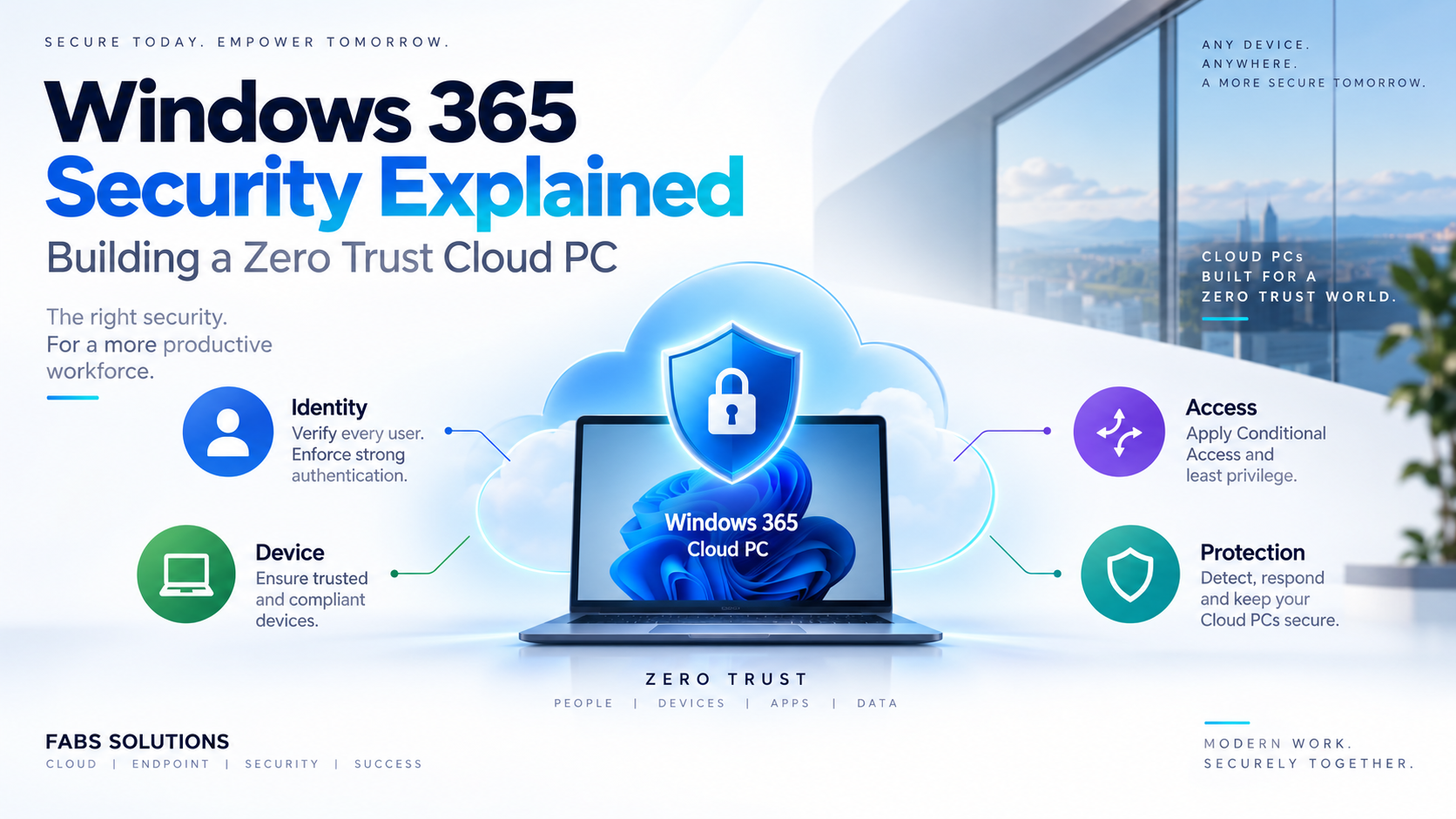
Windows 365 changes where the Windows desktop runs, but it doesn't remove the need to secure the user, device, identity, applications or data.
In many ways, moving the desktop into Microsoft's cloud gives organisations an opportunity to rethink desktop security completely.
Rather than attempting to reproduce a traditional corporate desktop security model in the cloud, Windows 365 can form part of a modern Zero Trust architecture built around:
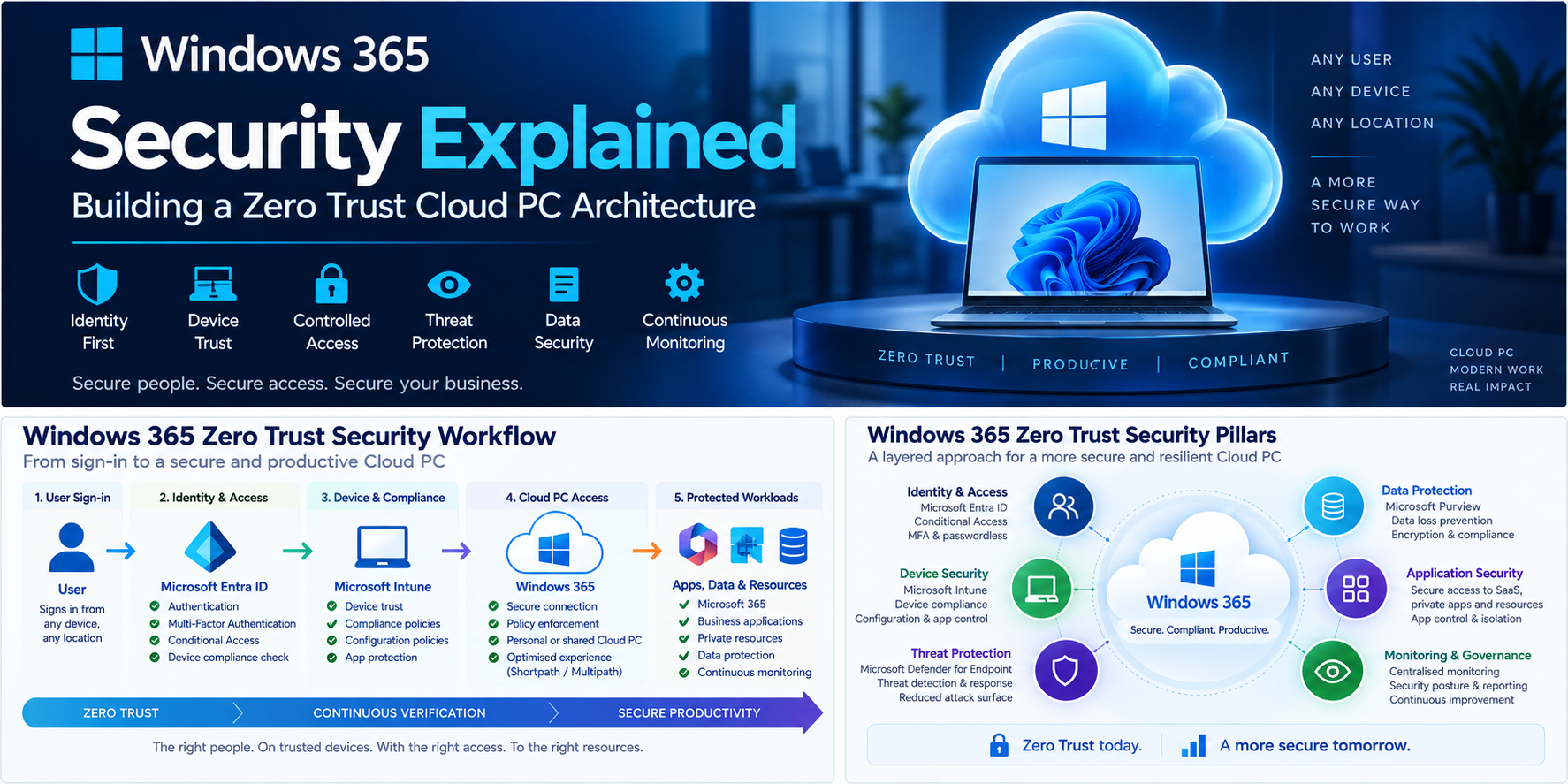
Identity → Device Trust → Conditional Access → Cloud PC → Applications & Data → Continuous Protection
The objective isn't simply to secure the Cloud PC.
It is to verify the entire chain between the user, connecting device, Cloud PC and corporate resources.
Microsoft describes Zero Trust around three fundamental principles: verify explicitly, use least privilege and assume breach.
In this article, we'll look at how those principles can be applied to Windows 365 and how technologies including Microsoft Entra ID, Conditional Access, Microsoft Intune, Microsoft Defender for Endpoint and Microsoft Purview combine to create a layered Cloud PC security architecture.
What Does Zero Trust Mean for Windows 365?
Traditional security architectures frequently relied heavily on network location.
A device connected to the corporate LAN was often considered more trustworthy simply because it was inside the organisation's network boundary.
Windows 365 changes that model.
A user could potentially connect to their Cloud PC from:
- A corporate Windows laptop
- A home PC
- A tablet
- Windows 365 Link
- Another managed device
- A personal device, where permitted
The Cloud PC itself might then connect to Microsoft 365, SaaS applications, Azure resources or private corporate applications.
Trust therefore can't simply be based on where the user is connecting from.
Instead, access decisions should consider signals such as:
- Who is the user?
- How did they authenticate?
- Is the connecting device trusted?
- Is the device compliant?
- What application or resource is being accessed?
- What is the risk associated with the sign-in?
- What actions should the user be permitted to perform?
This is where Microsoft Entra Conditional Access becomes one of the most important security controls in a Windows 365 architecture.
The Windows 365 Zero Trust Security Workflow
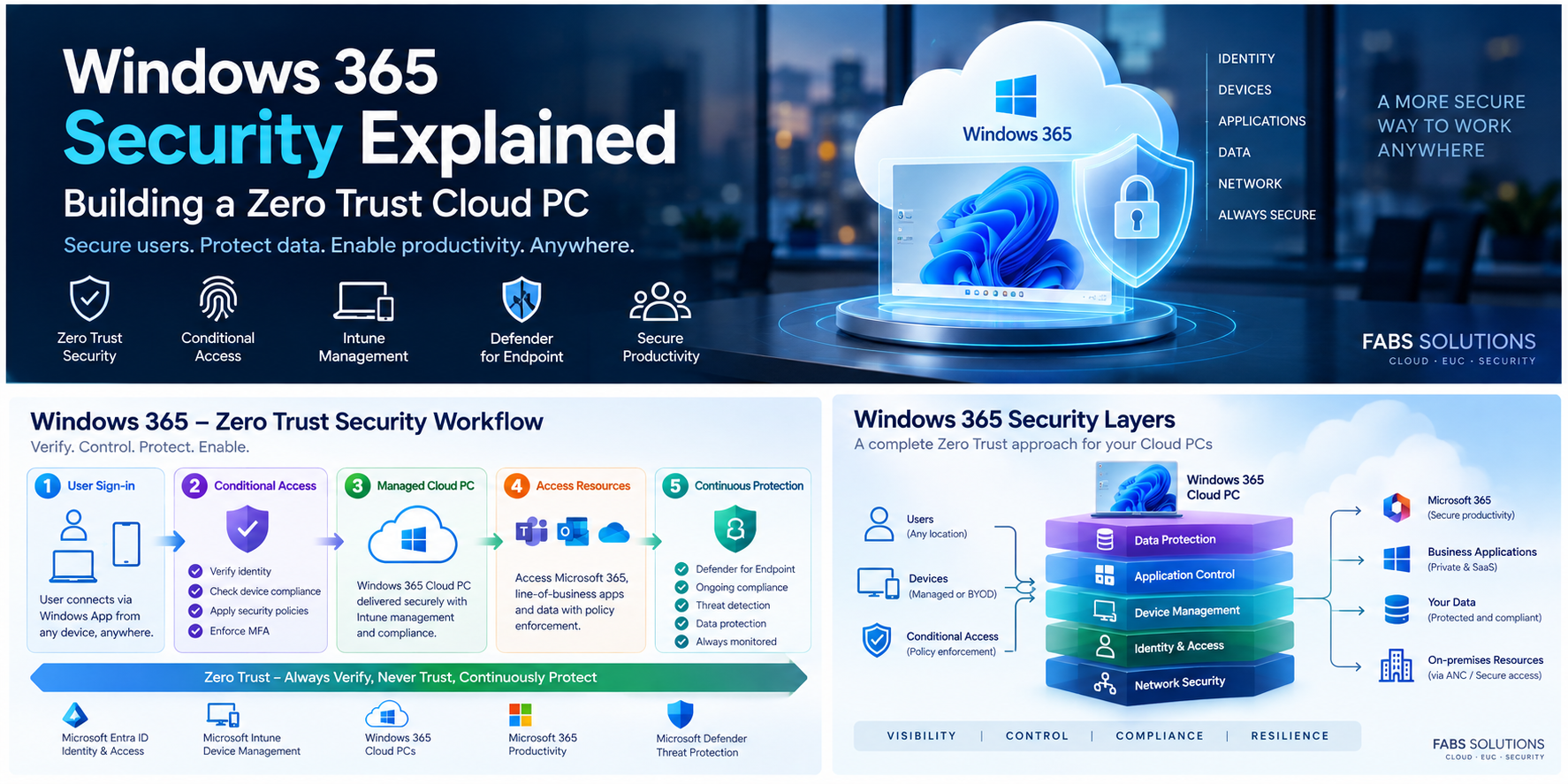
A useful way of understanding Windows 365 security is to follow the user's journey from authentication through to accessing corporate data.
1. User Sign-In
- Everything starts with identity.
- The user authenticates using their Microsoft Entra ID identity.
- For Windows 365, Microsoft separates authentication into three distinct phases: Cloud service authentication
- Authentication to the Windows 365 service itself.
- Remote session authentication
- Authentication to the Cloud PC.
- In-session authentication
- Authentication to applications and websites from inside the Cloud PC.
Windows 365 supports Single Sign-On to simplify the first two stages while maintaining the underlying security controls.
This distinction is important because security policies can affect different stages of the user's connection.
2. Microsoft Entra ID – Verify the Identity
Microsoft Entra ID should become the identity security control plane for the Windows 365 environment.
At minimum, organisations should consider: Multifactor Authentication
MFA provides additional protection if a user's password is compromised - Passwordless Authentication
Where possible, technologies such as Windows Hello for Business, FIDO2 security keys and passkeys can reduce dependency on passwords - Identity Protection
Risk signals can help identify suspicious users and sign-ins - Conditional Access
Access can be dynamically granted, restricted or blocked based on organisational policy.
The important architectural principle is:
Successfully entering a username and password shouldn't automatically establish trust.
Authentication is only one signal.
3. Conditional Access – Make the Access Decision
Conditional Access sits between authentication and access.
Conceptually:
User requests Windows 365
↓
Microsoft Entra evaluates signals
↓
Conditional Access policies are evaluated
↓
Access granted / challenged / restricted / blocked
Microsoft describes Conditional Access policies as essentially if-then access decisions.
For example:
IF
a user attempts to access Windows 365
THEN
require MFA.
Or:
IF
the device isn't compliant
THEN
block access.
Microsoft provides Conditional Access controls that can incorporate identity, device state, location, authentication strength and risk signals.
For Windows 365, a mature Conditional Access architecture might include policies covering:
- Require MFA
- Require compliant devices
- Require an appropriate authentication strength
- Block legacy authentication
- Control access from unmanaged devices
- Apply risk-based policies
- Protect privileged administrators separately
- Control session authentication frequency
One particularly important point is to avoid building one enormous Conditional Access policy containing every security requirement.
A modular policy model is generally easier to understand, troubleshoot and audit.
4. Device Trust – Don't Only Verify the User
A legitimate user can still connect from an unsafe device.
This creates an important Zero Trust distinction:
Trusted user ≠ trusted endpoint
Consider: A valid employee successfully completes MFA.
But they're connecting from a personal Windows PC that:
- isn't managed
- isn't encrypted
- has outdated security patches
- doesn't run corporate endpoint protection
- might already contain malware
Should that device have exactly the same access as a corporate-managed endpoint?
In many organisations, the answer should be no.
This is where Microsoft Intune becomes critical.
5. Microsoft Intune – Establish Device Compliance
Intune can evaluate whether managed endpoints meet the organisation's compliance requirements.
Policies might evaluate areas such as:
Encryption - Is BitLocker enabled?
Operating system - Is the device running an approved and supported Windows version?
Security state - Are required security technologies enabled?
Threat level - Has Microsoft Defender identified the device as risky?
The resulting compliance state can then become an input into Conditional Access.
Conceptually:
User Identity
Authentication Strength
Device Compliance
This is considerably stronger than making an access decision based purely on a password.
6. Secure the Cloud PC Itself
Getting securely connected to Windows 365 is only the first part of the architecture. The Cloud PC must also be secured.
Windows 365 Cloud PCs can be managed through Microsoft Intune similarly to physical Windows endpoints.
Microsoft provides a dedicated Windows 365 Cloud PC security baseline through Intune.
The current Windows 365 baseline is version 24H1 and includes recommended configuration across Windows, Microsoft Edge and Microsoft Defender for Endpoint.
The baseline includes controls across areas such as:
- Attack Surface Reduction
- Microsoft Defender
- SmartScreen
- PowerShell
- authentication
- network security
- UAC
- SMB
- device security
- tamper protection
However, a security baseline shouldn't simply be deployed across thousands of production Cloud PCs without validation.
Fabs Recommendation
Start with:
Pilot Cloud PCs
↓
Apply baseline
↓
Review application compatibility
↓
Review security exceptions
↓
Validate user experience
↓
Progressively deploy
Microsoft also recommends testing the baseline against a pilot group before broad deployment.
7. Microsoft Defender for Endpoint
Microsoft Defender for Endpoint adds another security layer.
Windows 365 integrates directly with Defender for Endpoint, allowing Cloud PCs to participate in the organisation's broader endpoint detection and response architecture.
When appropriately licensed and configured, Cloud PCs can contribute security information into Microsoft Defender and Microsoft Secure Score and can participate in threat detection and remediation workflows.
This gives security teams visibility into Cloud PCs alongside physical endpoints.
A simplified security flow becomes:
Cloud PC
↓
Microsoft Defender for Endpoint
↓
Threat Detection
↓
Investigation
↓
Automated / Manual Response
↓
Remediation
This is particularly important because a Cloud PC isn't automatically safe simply because it runs in Microsoft's cloud.
Users can still:
- open malicious attachments
- visit malicious websites
- execute malware
- expose credentials
- install unwanted software
- access compromised applications
Zero Trust therefore assumes that compromise remains possible.
8. Attack Surface Reduction
Microsoft Defender Attack Surface Reduction rules can further harden Cloud PCs.
ASR rules can help restrict behaviours frequently used during attacks.
Examples include controlling potentially dangerous behaviour originating from Office applications, scripts and executable content.
The Windows 365 security baseline already incorporates a number of recommended attack-surface controls.
However, application compatibility should again be considered before aggressive enforcement.
For enterprise environments: Audit → Analyse → Pilot → Enforce
is generally safer than immediately enabling every control across production.
9. Protect the Data – Not Just the Desktop
One of the most important benefits of Windows 365 is that corporate workloads can execute inside the Cloud PC rather than directly on the user's physical endpoint.
But data can still move between the Cloud PC and the client.
For example:
Cloud PC
↓
Clipboard
↓
Personal Device
or:
Cloud PC
↓
Drive Redirection
↓
Local Storage
This means RDP redirection policies become part of the security architecture.
Windows 365 supports management of redirections including:
- Clipboard
- Drives
- Printers
- USB devices
- Cameras
- Audio
- COM ports
- Location
- Smartcards
These settings can be controlled using Microsoft Intune or Group Policy.
10. Don't Disable Everything Without Understanding the User
Security teams might initially propose:
- Disable clipboard
- Disable drives
- Disable printers
- Disable USB
That might provide strong isolation.
It can also destroy productivity.
A better question is:
What data movement does this user genuinely require?
For example:
A developer might need clipboard access for text.
A finance user might require local printing.
A contractor connecting from an unmanaged endpoint might require far more restrictive controls.
Security should therefore be risk-based rather than universally restrictive.
11. Context-Based Redirection
This is an especially interesting development for Windows 365 Zero Trust architecture.
Microsoft currently provides context-based redirections in Preview.
This allows redirection behaviour to differ based on Conditional Access authentication context and device trust.
For example:
Managed + compliant device
↓
Clipboard allowed
Drive redirection allowed
Printer allowed
But:
BYOD / noncompliant device
↓
Clipboard restricted
Drive redirection blocked
USB blocked
Microsoft's current guidance specifically describes validating different redirection behaviour between managed/compliant endpoints and BYOD or noncompliant devices.
This is much closer to a true Zero Trust model than simply enabling or disabling redirection globally.
12. Microsoft Purview – Protect Sensitive Information
Endpoint security protects the device.
Data security protects the information.
Microsoft Purview can extend data protection into Windows 365 environments.
Microsoft specifically documents integration between Windows 365 and Purview Endpoint Data Loss Prevention.
DLP can help prevent sensitive information being moved from a Cloud PC to unauthorised destinations, including scenarios involving clipboard, drives and printing.
This allows security policy to become data-aware.
Instead of simply saying:
Disable clipboard.
the organisation can move towards:
Prevent sensitive corporate information from being transferred to an unauthorised endpoint.
That is a much more powerful security model.
13. Application Security
The next layer is the applications themselves.
A secured Cloud PC shouldn't automatically provide unrestricted access to every application.
Access should still be governed through identity and application-level permissions. Consider:
User
↓
Trusted Endpoint
↓
Conditional Access
↓
Cloud PC
↓
Application
↓
Application Authorization
↓
Data
Every stage should enforce the appropriate controls.
A Cloud PC should therefore be treated as an access platform, not a universal security bypass.
14. Network Security Still Matters
As covered in the previous article in this Windows 365 series, Cloud PCs can use either:
Microsoft-hosted networking
or:
Azure Network Connections
If an ANC is used, the organisation gains additional control over:
- Azure VNets
- routing
- NSGs
- DNS
- private endpoints
- Azure Firewall/NVAs
- VPN/ExpressRoute
- private application connectivity
But Zero Trust shouldn't depend solely on being connected to the corporate network.
A Cloud PC shouldn't become trusted simply because its IP address belongs to an Azure subnet.
Identity, device, application and data controls should continue to apply.
15. Least Privilege Administration
Zero Trust also applies to administrators.
Not every administrator needs:
- Global Administrator
- Intune Administrator
or broad Azure permissions.
As covered earlier in this Windows 365 series, Cloud PC administration spans several control planes:
- Microsoft Entra RBAC
- Windows 365 roles
- Intune RBAC
- Azure RBAC
where Azure resources are involved.
The principle should be:
Give administrators the minimum permissions required to perform their role, for the minimum period necessary.
For privileged roles, Microsoft Entra Privileged Identity Management can be used to provide time-limited elevation rather than permanent standing access.
16. Separate Operational Roles
A practical model might look like this:
| Persona | Typical Security Scope | |
|---|---|---|
| L1 Support | View Cloud PCs + approved support actions | |
| L2 Engineering | Cloud PC troubleshooting + controlled lifecycle operations | |
| L3 Platform | Provisioning, policy, networking and platform engineering | |
| Security Team | Defender, compliance, endpoint security and investigation | |
| Platform Owner | Governance and platform configuration | |
| Service Owner | Reporting and service visibility | |
| Privileged Administrator | Temporary elevated access through PIM |
The objective isn't to create more roles for the sake of complexity.
It is to reduce unnecessary privilege.
17. Secure the Connection Experience
Windows 365 uses Remote Desktop technologies to deliver the Cloud PC experience.
That connection architecture can include:
RDP over TCP
RDP Shortpath
RDP Multipath
Fast Reconnect
Performance and security shouldn't be considered separately.
A highly secure architecture that produces a poor user experience often leads to users finding alternative ways of working.
The goal should therefore be: Secure + Resilient + Performant
rather than simply: Locked Down
18. Sign-In Frequency – Be Careful
Conditional Access allows administrators to control sign-in frequency.
This can be useful, particularly for higher-risk scenarios.
But more authentication prompts don't automatically equal better security.
Microsoft notes that reauthentication behaviour depends on the resource being accessed and that network disruptions can result in additional authentication if a session needs to be re-established after the configured sign-in frequency.
An overly aggressive authentication policy can therefore negatively affect Cloud PC user experience.
Fabs Recommendation
Use:
- Strong authentication
- Device compliance
- Risk signals
- Conditional Access
rather than relying on constant authentication prompts as the primary security control.
19. Monitoring and Governance
Zero Trust isn't a one-time configuration exercise. The environment needs continuous monitoring.
Security and operations teams should monitor:
- Microsoft Entra sign-in logs
- Conditional Access results
- Intune compliance
- Cloud PC health
- Microsoft Defender incidents
- Security recommendations
- Administrative activity
- Device configuration drift
- Data protection events
- Privileged role activation
The architecture therefore becomes a continuous loop:
- Verify
- Grant Minimum Required Access
- Monitor
- Detect
- Respond
- Improve
- Verify Again
That continuous feedback loop is one of the most important differences between Zero Trust and traditional perimeter security.
Recommended Windows 365 Zero Trust Architecture
Putting the components together gives us:
USER
↓
Microsoft Entra ID
- Identity
- MFA
- Passwordless
- Identity Protection
↓
Conditional Access
- Authentication strength
- Device state
- Risk
- Location/context
- Session controls
↓
Microsoft Intune
- Compliance
- Configuration
- Security baseline
- Application management
↓
Windows 365 Cloud PC
- Secure Windows environment
- Controlled RDP redirection
- Least privilege
- Secure configuration
↓
Microsoft Defender
- Endpoint detection
- Threat protection
- Attack surface reduction
- Investigation and response
↓
Applications & Data
- Microsoft 365
- SaaS
- Private applications
- Azure resources
↓
Microsoft Purview
- Information protection
- Endpoint DLP
- Data governance
↓
Continuous Monitoring
- Entra
- Intune
- Defender
- Windows 365
- Security operations
This is why Windows 365 security should never be designed as a single product configuration.
It is an integrated Microsoft security architecture.
A Practical Enterprise Security Model
For most enterprise deployments, I would begin with the following design principles:
- Identity First - Microsoft Entra ID should be the primary identity control plane.
- Strong Authentication - Require MFA and progressively adopt phishing-resistant authentication.
- Prefer Microsoft Entra Join - For greenfield Cloud PCs, avoid introducing Hybrid Microsoft Entra Join unless a genuine technical dependency requires it.
- Conditional Access - Protect Windows 365 access based on identity, authentication, device compliance and risk.
- Intune Management - Manage Cloud PCs using consistent configuration, compliance and application policies.
- Security Baseline - Use the Windows 365 security baseline as a starting point, but test it before production deployment.
- Defender for Endpoint - Integrate Cloud PCs into the wider endpoint detection and response architecture.
- Control RDP Redirection - Decide what should be permitted for clipboard, drives, printers and USB rather than simply accepting defaults.
- Protect the Data - Use Microsoft Purview where sensitive information requires additional controls.
- Least Privilege - Separate helpdesk, engineering, security and platform administration.
- PIM - Avoid unnecessary standing privileged roles.
- Monitor Continuously - Security posture should evolve as risks, applications and user behaviour change.
Windows 365 Zero Trust Security Checklist
Before moving a Windows 365 environment into production, I would validate:
- Are Cloud PCs Microsoft Entra joined wherever possible?
- Is MFA enforced?
- Is phishing-resistant authentication being considered for privileged/high-risk users?
- Are Conditional Access policies protecting Windows 365?
- Have policies been validated in Report-only mode before enforcement?
- Are emergency-access accounts correctly excluded where required?
- Is device compliance incorporated into access decisions?
- Are Cloud PCs managed through Intune?
- Has the Windows 365 security baseline been tested?
- Is Microsoft Defender for Endpoint deployed?
- Are Attack Surface Reduction policies configured?
- Are local administrator permissions controlled?
- Are RDP clipboard, drive, printer and USB redirections reviewed?
- Is unmanaged-device access treated differently where appropriate?
- Is sensitive information protected using Purview/DLP where required?
- Are Windows 365 administrators operating under least privilege?
- Are privileged roles protected using PIM?
- Are Entra sign-in and Conditional Access logs monitored?
- Are Intune compliance failures monitored?
- Are Defender incidents integrated into security operations?
- Are exceptions documented?
- Is the architecture reviewed regularly?
Final Thoughts
Windows 365 doesn't remove endpoint security.
It changes where endpoint security is applied.
A successful Cloud PC security architecture shouldn't depend on one firewall, one authentication prompt or one device policy.
Instead, protection should exist across multiple layers:
Identity
↓
Authentication
↓
Device Trust
↓
Conditional Access
↓
Cloud PC
↓
Application
↓
Data
↓
Continuous Monitoring
The result is a Windows 365 environment where access isn't permanently trusted simply because a user has successfully logged in.
- Identity is verified.
- Device state is evaluated.
- Access is controlled.
- The Cloud PC is hardened.
- Threats are monitored.
- Data movement is governed.
- Administrative privilege is minimised.
- And security signals continue to be evaluated throughout the lifecycle of the service.
That's the real opportunity with Windows 365.
Don't simply move the corporate desktop into the cloud.
Use the move to build a modern Zero Trust Cloud PC architecture.
Microsoft Documentation
Microsoft Windows 365 – Security overview
https://learn.microsoft.com/en-us/windows-365/enterprise/security-guidelines
Microsoft Windows 365 – Identity and authentication
https://learn.microsoft.com/en-us/windows-365/enterprise/identity-authentication
Windows 365 – Deploy security baselines
https://learn.microsoft.com/en-us/windows-365/enterprise/deploy-security-baselines
Windows 365 Cloud PC security baseline settings
https://learn.microsoft.com/en-us/intune/device-security/security-baselines/ref-windows-365-settings
Microsoft Entra Conditional Access
https://learn.microsoft.com/en-us/entra/identity/conditional-access/
Windows 365 – Manage RDP device redirections
https://learn.microsoft.com/en-us/windows-365/enterprise/manage-rdp-device-redirections
Windows 365 – Context-based redirections
https://learn.microsoft.com/en-us/windows-365/enterprise/context-based-redirections
Microsoft Zero Trust Guidance Center
https://learn.microsoft.com/en-us/security/zero-trust/
Click Here To Return To Blog